
तैयारी वाला डिस्प्ले
preparation display feature उन पीओएस ऑर्डर को handle करने की अनुमति देता है जिन्हें preparation की ज़रूरत होती है। ठोस रूप में,
रिटेल के लिए: ग्राहक pickup के लिए खरीदे गए आइटम इकट्ठा करने के लिए पीओएस पर पेमेंट पूरा होने के बाद प्रीपरेशन टीम को नोटिफ़ाई किया जाता है।
रेस्टोरेंट के लिए: पीओएस ऑर्डर किचन को तैयार किए जाने वाले meals की जानकारी देते हैं।
कॉन्फ़िगरेशन
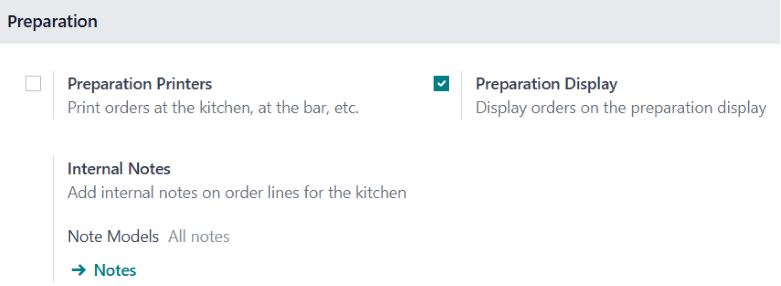
preparation display feature को enable करने के लिए,
पीओएस सेटिंग पर जाएं।
प्रीपरेशन सेक्शन तक scroll करें।
प्रीपरेशन डिस्प्ले option को check करें।
To create and set up a preparation display,
Go to
नया पर क्लिक करें।
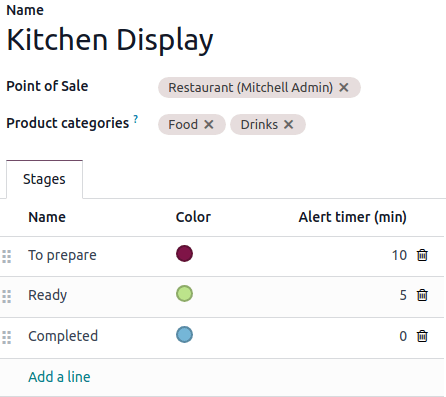
Give the display a descriptive Name (e.g.,
Main Kitchen,Bar)Set it up:
Point of Sale: Select the POS that sends orders to this display.
Product categories: Specify the POS Product categories sent to this display.
Stages: Define the steps required for the orders to be ready.
स्टेज जोड़ने के लिए लाइन जोड़ें पर क्लिक करें।
Assign specific colors to each stage for clarity (optional).
Define an Alert timer (min) for each stage to indicate the expected processing time.
टिप्पणी
To edit a pre-existing preparation display, click the vertical ellipsis button () on the display's card and select Configure.
व्यावहारिक अनुप्रयोग
Go to to get an overview of all your displays.
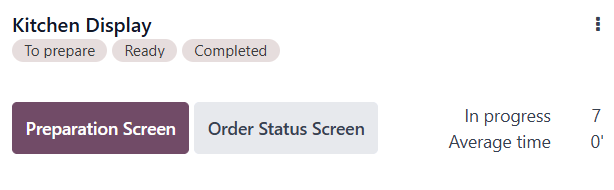
डिस्प्ले कार्ड दिखाता है:
The configured stages.
वर्तमान में प्रोग्रेस में ऑर्डर की संख्या।
औसत समय जो कर्मचारी आमतौर पर एक ऑर्डर पूरा करने में लेते हैं।
सलाह
Click the Kitchen Display app icon on your Odoo Dashboard for quicker access.
Using the preparation display
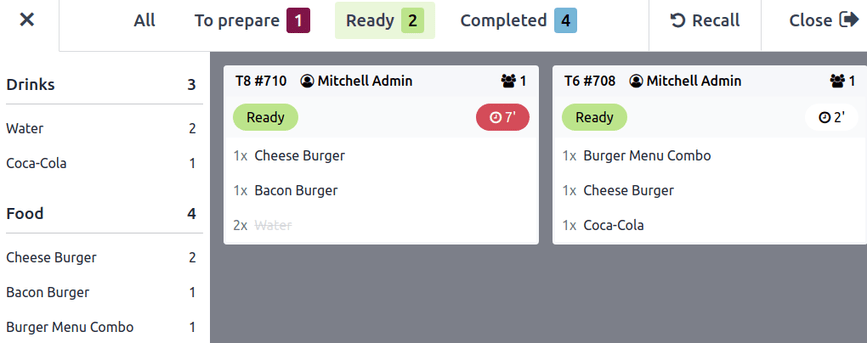
To access the preparation display, click Preparation Screen. This interface, designed for employees, shows:
Stages and order count: Displays the progress of orders across stages such as
To prepare,Ready, andCompleted, along with the number of orders in each stage.Ordered products by category: Lists all items in progress, grouped by POS categories (e.g.,
Drinks,Food).Order cards: Summarizes individual orders, including:
Associated tables and order numbers.
Status, such as
Ready, highlighted with the defined colors.Waiting time, with visual indicators.
टिप्पणी
The duration indicator turns red if the elapsed time exceeds the predefined alert time.
To update order progress:
Click items on the order card to cross them off individually.
Click the order card itself to mark all items at once.
The card automatically moves to the next stage once every item is crossed off.
Click Recall to move an order back to the previous stage if you mistakenly sent it to the next stage.
कस्टमर डिस्प्ले
In parallel, click Order Status Screen to open the customer interface. This interface, designed for customers, provides an overview of orders that are:
पिकअप के लिए तैयार।
लगभग तैयार, यह दर्शाता है कि उन्हें संभाला जा रहा है।
टिप्पणी
The order number can be found at the top of the customer's receipt.