रिपोर्टिंग
टाइम ऑफ़ ऐप्लिकेशन की रिपोर्टिंग सुविधा प्रबंधकों को कर्मचारी, टाइप या शेष बैलेंस के आधार पर टीम टाइम ऑफ़ देखने देती है। यह प्रबंधकों को देखने देता है कि कौन टाइम ऑफ़ ले रहा है, उन्होंने कितना उपयोग किया है, कौन से टाइप अधिक सामान्यतः उपयोग किए जाते हैं, और प्रत्येक कर्मचारी के पास अभी भी कितना उपलब्ध है।
महत्त्वपूर्ण
The reporting feature of the Time Off app is only available to users with the correct access rights, typically managers.
कर्मचारी द्वारा
कर्मचारी द्वारा टाइम ऑफ़ देखना प्रबंधकों को उपयोग पैटर्न ट्रैक करने, शेष बैलेंस मॉनिटर करने, नीति अनुपालन सुनिश्चित करने और आने वाली अनुपस्थितियों के लिए कवरेज की योजना बनाने में मदद करता है। कर्मचारी टाइम ऑफ़ अनुरोधों की सूची देखने के लिए, पर जाएं।
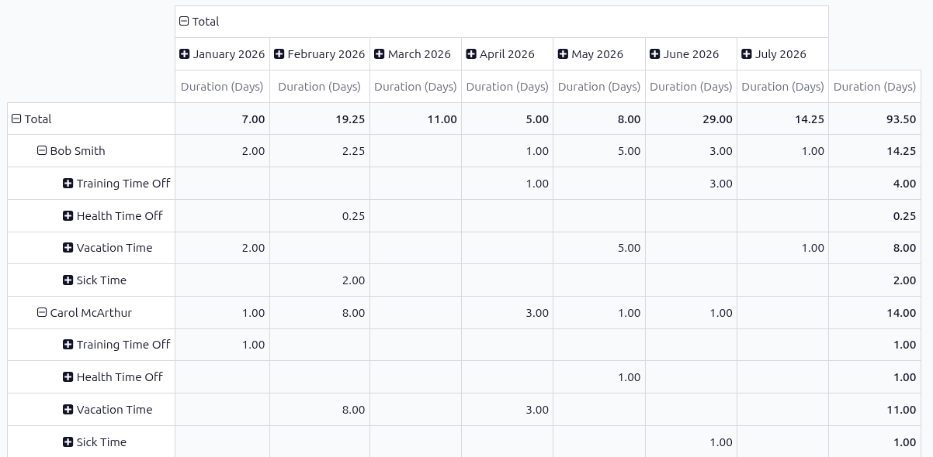
The default report presents the current year's data in a pivot table, with the months populating the columns, and the employees populating the rows. The report displays the various time off taken by each employee, with a status of either Approved or To Approve, the amount of time off used for each month (the Duration (Days)), and the various totals.
टिप्पणी
All time off is calculated in days, including time off types configured to be taken in hours.
Odoo automatically converts all time off hours into their day equivalent. For example, two hours
of time off is presented as 0.25 days.
यह भी देखें
टाइप के हिसाब से
कंपनी-व्यापी टाइम ऑफ़ को टाइप के आधार पर देखना प्रबंधकों को यह निर्धारित करने में मदद कर सकता है कि क्या कर्मचारी अपना टाइम ऑफ़ उपयोग कर रहे हैं, कौन से टाइप दूसरों की तुलना में ज़्यादा उपयोग किए जाते हैं, और किसी भी रुझान को पहचान सकते हैं। कुछ टाइम ऑफ़ टाइप में उच्च कुल, जैसे सिक टाइम ऑफ़, स्वास्थ्य या मनोबल संबंधी चिंताओं का संकेत दे सकते हैं।
To view a graph of all time off, organized by time off type, navigate to . This shows all time off requests with a status of Approved or To Approve in a default bar chart.
Each time off type displays three columns of information:
Allocation: This blue-colored bar indicates the total amount of time off allocated to employees.
Time Off: This red-colored bar indicates the amount of time off requested, including both past and scheduled future time off, for both approved and pending requests.
Balance: This green-colored bar indicates the total balance of unused time off.
टिप्पणी
If the time off type is configured to not require an allocation, the Allocation column does not appear.
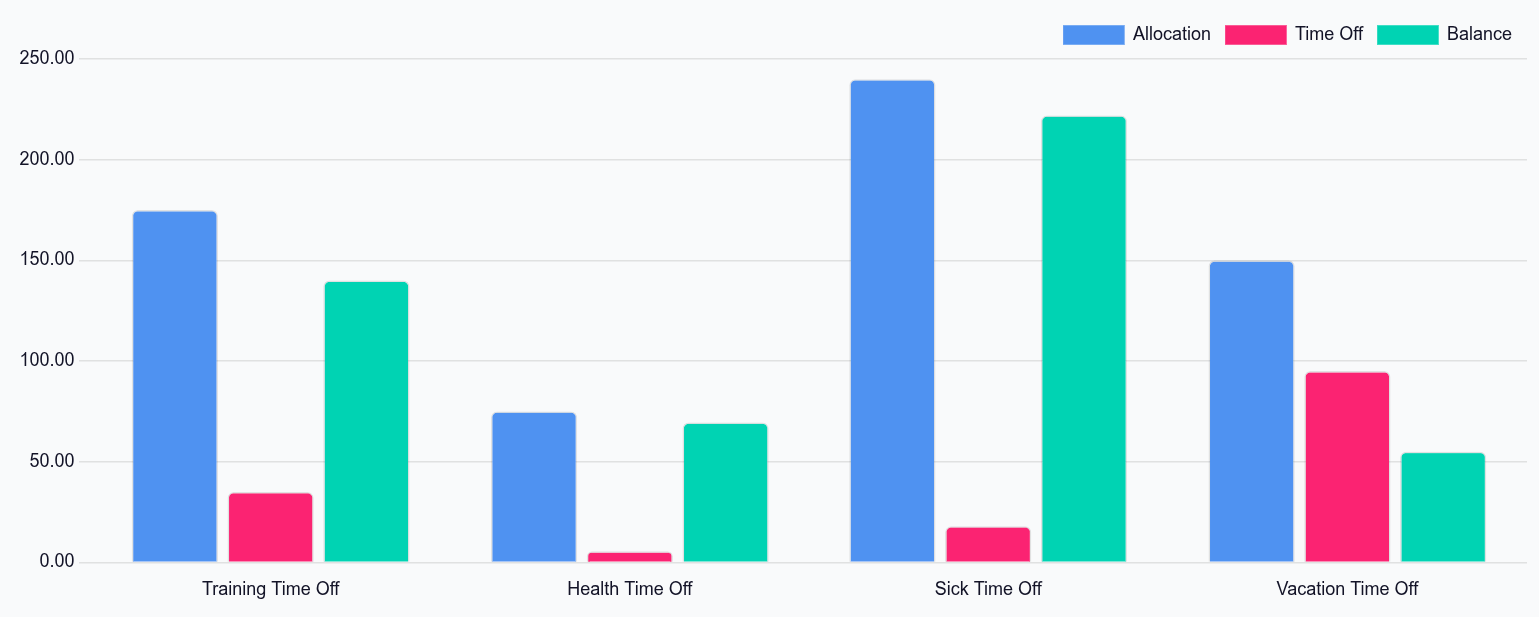
Hover over a column to view the total Duration (Days) and click on a bar to view a detailed list of all the individual records for that bar.
प्रत्येक अनुरोध सूचीबद्ध होता है, जिसमें निम्नलिखित जानकारी दिखाई जाती है: कर्मचारी, दिनों की संख्या, अनुरोध टाइप, शुरू होने की तारीख, खत्म होने की तारीख, स्टेटस, और विवरण।
रिपोर्ट को अन्य तरीकों से भी डिस्प्ले किया जा सकता है। डेटा को उस तरीके से देखने के लिए पेज के ऊपरी-दाएं कोने में संबंधित बटन विकल्प पर क्लिक करें। विभिन्न विकल्प हैं (ग्राफ़) (डिफ़ॉल्ट व्यू), (लिस्ट), या (पिवट) टेबल।
जब कोई चयन किया जाता है, तो उस विशेष चयन के लिए अतिरिक्त विकल्प दिखाई देते हैं। रिपोर्ट और उनके विभिन्न विकल्पों के बारे में ज़्यादा विस्तृत जानकारी के लिए, रिपोर्टिंग दस्तावेज़ देखें।
बैलेंस
When some time off types have restrictions, such as rollover rules and balance limits, viewing time off balances can help managers and time off approvers see a high-level overview of time off. If certain employees have time off that will expire soon, they can be infomred and adjust their schedules accordingly.
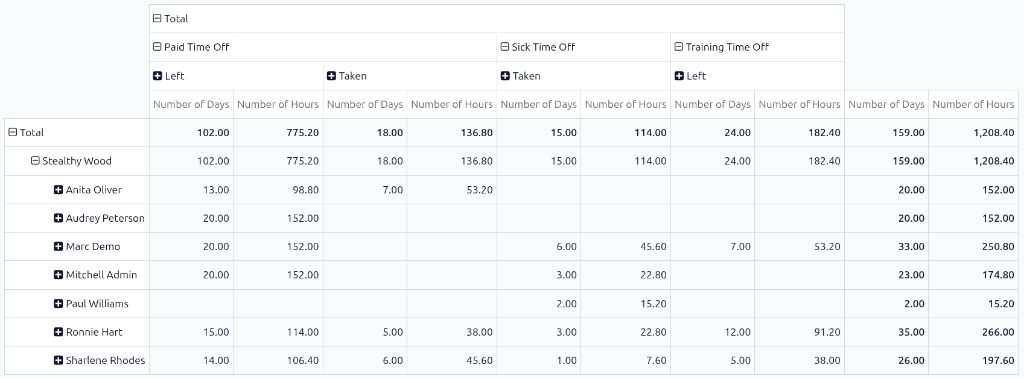
To view all time off balances for the current year, navigate to . The Balance report shows all time off balances in a default pivot table. The employees populate the rows, while the various time off types populate the columns.
Each time off type displays the Number of Days and Number of Hours remaining for the following:
Left: The remaining amount of time off for the year.
Planned: The amount of time off scheduled for the remainder of the year.
Taken: The amount of time off already taken for the year.