従業員への払戻
経費レポートが:doc:`会計仕訳帳に転記 <../expenses/post_expenses>`された後、次のステップは従業員に精算することです。従業員への精算は、現金、小切手、または直接入金の3つの方法で行うことができます:
個別:各経費レポートを個別に精算します。
In bulk: Multiple expense reports are reimbursed in a single payment.
In the employee's payslip: Expense reports are reimbursed directly in the employee's payslip.
経費精算の設定
Reimbursements can be paid via a paycheck, check, cash, or bank transfer (usually referred to as direct deposit). To set up payment options, first configure the various settings by navigating to .
従業員の経費を:ref:給与で <expenses/reimburse-payslip> 払戻すには、経費 セクションの 給与明細で払い戻す オプションの横にあるチェックボックスにチェックを入れます。
Next, set how payments are made in the Accounting section. Click the drop-down menu under Payment Methods, and select the desired payment option. The default options include paying by Manual Payment (Cash), Manual Payment (Bank), Batch Deposit (Bank), and Checks (Bank).
このフィールドを空白のままにすると、すべての対応可能な支払いオプションを使用できます。
希望する設定が全て完了したら、保存 をクリックして設定を有効化します。
給与明細で経費精算
設定ページで給与明細で経費精算オプションが有効になっている場合、別途支払いを発行する代わりに、従業員の次の給与明細に支払いを追加できます。
重要
Reimbursing expenses on payslips can only be done individually for an approved expense report. Once an expense report has a status of Posted, the option to reimburse in the following payslip is not available.
Navigate to , and click on the individual expense report to reimburse on the following paycheck. Click the Report in Next Payslip button, and the expenses are added to the next payslip issued for that employee.
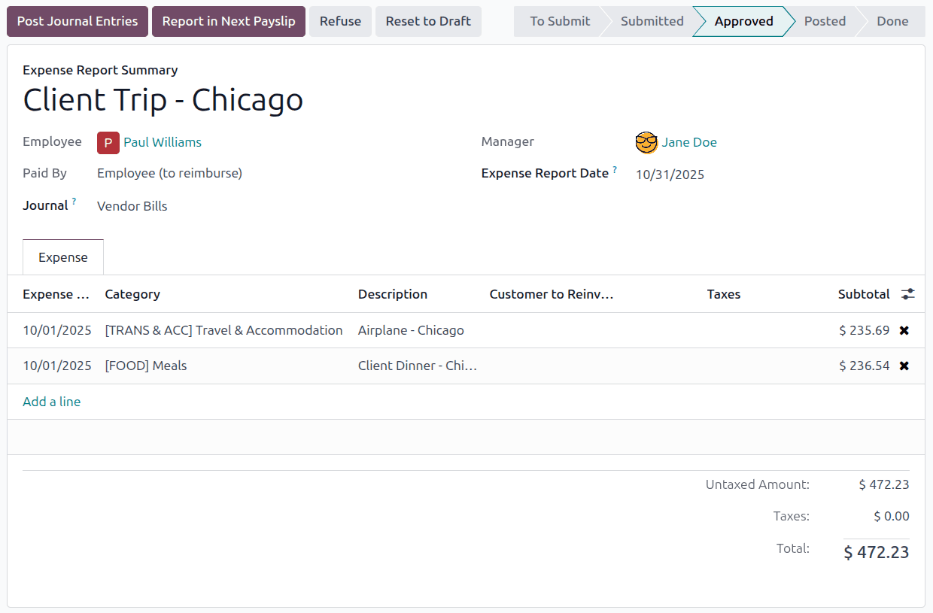
Once the expense report is added to the following payslip, a message is logged in the chatter
stating Expense report (expense report name) will be added to the next payslip. The status for the
expense report remains Approved. The status only changes to Posted (and then
Done), when the related payslip is processed.
参照
給与計算処理について詳しくは 給与明細 ドキュメントをご確認下さい。
個別に払戻す
To reimburse an individual expense report, first navigate to . All expense reports are presented in a default list view. Click on the expense report being reimbursed to view the report details.
重要
Only expense reports with a status of Posted can be reimbursed directly to the employee (not via a payslip).
Click the Pay button in the top-left corner of the expense report, and a Pay pop-up window loads. Enter the following information in the pop-up window:
Journal: Select the accounting journal to post the payment using the drop-down menu. The default options are Bank or Cash.
支払方法: ドロップダウンメニューを使用して支払方法を選択します。仕訳帳に現金を選択した場合、利用可能なオプションは手動支払のみです。仕訳帳に銀行を選択した場合、デフォルトのオプションは手動支払または小切手です。
Recipient Bank Account: This field only appears if the Journal is set to Bank. The employee's bank account populates this field, by default. If the employee has more than one trusted bank account on their employee profile, use the drop-down menu to select the desired bank account.
Amount: The total amount being reimbursed populates this field, by default.
Payment Date: Enter the date the payment is issued in this field. The current date populates this field, by default.
メモ: 経費報告の 経費報告概要 フィールドに入力されたテキストが、デフォルトでこのフィールドに入力されます。
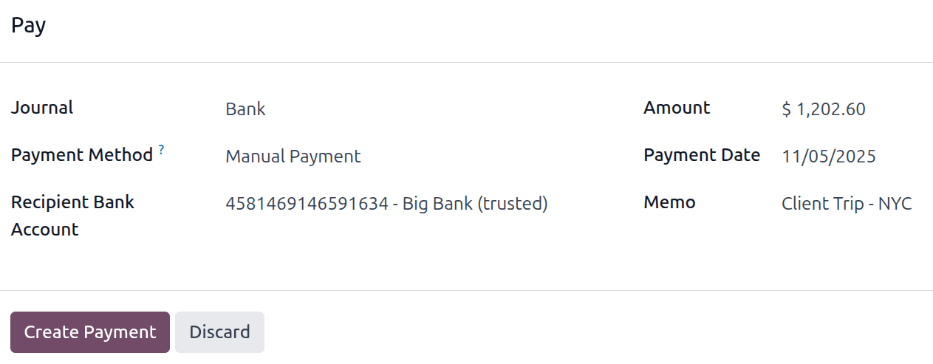
When the fields of the pop-up window are completed, click the Create Payment button to register the payment, and reimburse the employee. A green In Payment banner now appears on the expense report.
一括で払戻す
To reimburse multiple expense reports at once, navigate to to view all expense reports in a list view. Next, select the expense reports to be reimbursed.
重要
Only expense reports with a status of Posted can be reimbursed directly to the employee (not via a payslip).
ちなみに
Adjust the STATUS filter on the left side to only show Posted expense reports. This displays only expense reports that are able to be reimbursed.
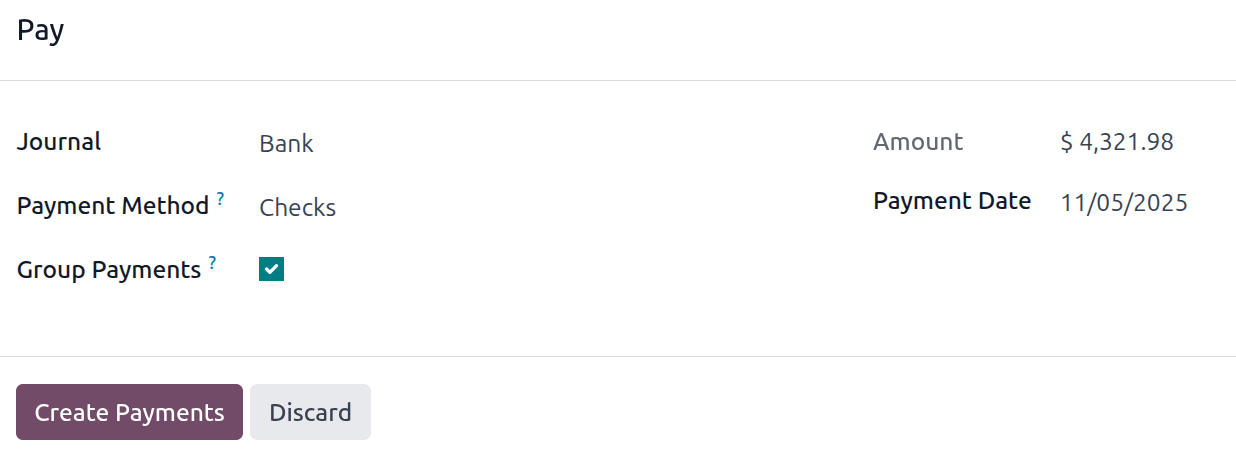
Tick the checkbox next to the expense reports being reimbursed, then click the Pay button, and a Pay pop-up window loads. Enter the following information in the pop-up window:
Journal: Select the accounting journal to post the payment using the drop-down menu. The default options are Bank or Cash.
支払方法: ドロップダウンメニューを使用して支払方法を選択します。仕訳帳に現金を選択した場合、利用可能なオプションは手動支払のみです。仕訳帳に銀行を選択した場合、デフォルトのオプションは手動支払または小切手です。
Group Payments: When multiple expense reports are selected for the same employee, this option appears. Tick the checkbox to have only one payment made per employee, rather than issuing multiple payments to the same employee.
Amount: The total amount being reimbursed for all the expense reports populates this field, by default.
支払日: 支払が発行された日付を入力します。デフォルトでは、現在の日付がこのフィールドに入力されます。
When the fields on the Pay pop-up window are completed, click the Create Payments button to register the payments, and reimburse the employees.