スキルの進化
In Odoo's Appraisals app, it is possible to view employees' skills as they progress over time in the Skills Evolution report, also known as the Appraisal Skills Report.
マネージャーはこれを使用して、評価で設定されたさまざまなスキル目標を達成している人、スキルの期限を守っている人、スキル開発の観点で最もパフォーマンスが高い人などを確認できます。
スキルの進化レポートでは、特定のスキルを持つ従業員を特定のレベルで検索する機能も提供されており、特定のスキルが必要なシナリオで役立ちます。
スキルの進化レポート
このスキルの進化レポートにアクセスするには、に移動します。
Doing so reveals the Appraisal Skills Report page. All skills are grouped first by the month the skill was initially achieved, then by employee, and lastly by skill type.
重要
The Appraisal Skills Report only displays skills for employees with at least one completed appraisal. Skills for employees whose appraisals have a status of Draft or Ongoing are not included.
When an employee completes their first appraisal, all their skills appear on the report. Once subsequent appraisals are marked as Done, any skill changes from the previous appraisal appear on the report.
確定されていない進行中の評価からのスキルレベルの変更は、このレポートに含まれません。
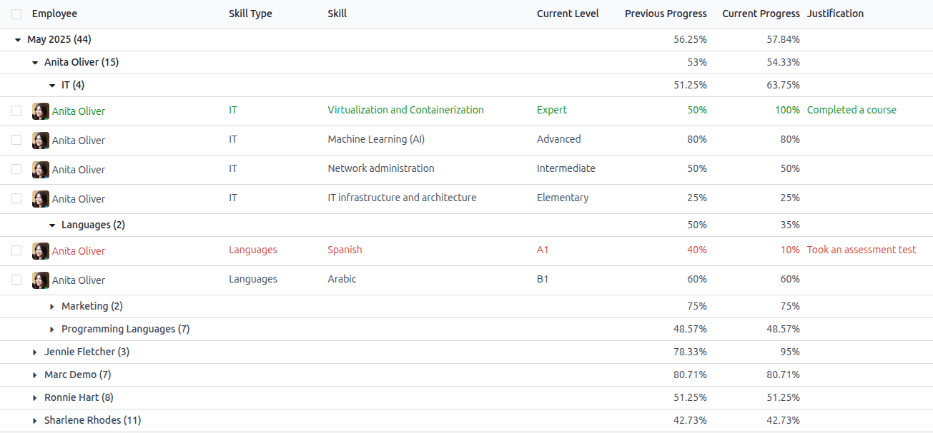
To view the specific details for an employee's skill, expand the Employee, then the Skill Type. This displays a list of all the employee's skills within that skill type. Each skill displays the following information:
従業員:従業員の氏名。
Skill Type: The category the skill falls under.
Skill: The specific, individual skill.
Current Level: The current level the employee has achieved for the skill.
Previous Progress: The previous percentage of competency achieved for the skill.
Current Progress: The current percentage of competency achieved for the skill.
Justification: Any notes entered on the skill, explaining the progress.
The color of the skill text indicates any changes from the previous appraisal. Skill levels that have increased since the last appraisal appear in green, skill levels that have not changed appear in black, and skills that have regressed appear in red.
このレポートは、上部の検索バーで設定されている:ref:`フィルター <search/filters>`と:ref:`グループ化 <search/group>`を調整することで、特定の情報を見つけるように変更できます。
使用例:特定のスキルを持つ従業員を特定する
Since the Appraisal Skills Report organizes all skills by month, then employee, it can be difficult to find employees with a specific skill at a certain level. To find these employees, a custom filter must be used.
この例では、エキスパートレベルのJavascriptの知識を持つ従業員を表示するようにレポートを変更します。それらの従業員のみを表示するには、まず検索バーのすべてのアクティブなフィルターを削除します。
Next, click the (Toggle Search Panel) icon in the search bar, then click Custom Filter... beneath the Filters column to load a Custom Filter pop-up window.
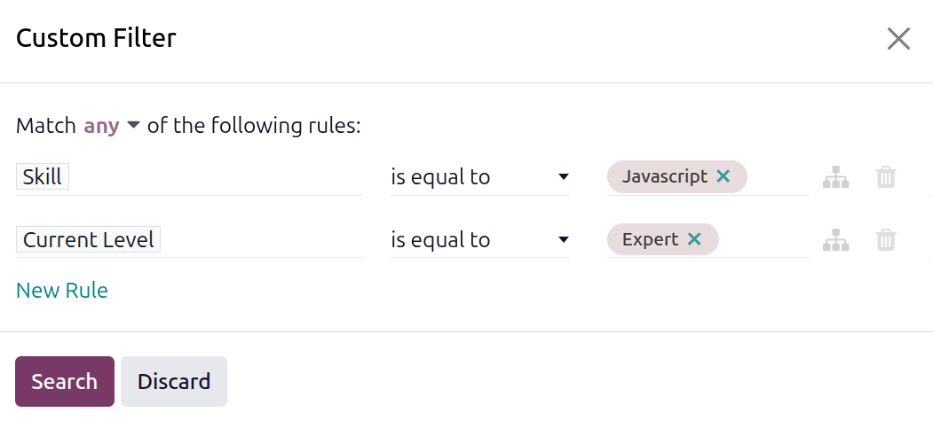
At the top of the pop-up window, first modify the Match any of the following rules sentence. Click the word any to change it to all.
Next, using the drop-down menu in the first field, select Skill. Then, keep the second field as-is (is equal to), and select Javascript for the third field.
Next, click New Rule, and another line appears. In this second line, select Current Level for the first drop-down field, leave the second field as-is (is equal to), then select Expert for the third drop-down field.
Finally, click the Search button.
これで、:guilabel:`Javascript`のスキルで:guilabel:`エキスパート`レベルを持つ従業員のみが表示されます。この例では、:guilabel:`Marc Demo`のみがこれらの基準を満たしています。

使用例:最大の向上を評価する
Another way to modify the Appraisal Skills Report is to identify the employee who has the highest amount of improved skills over a specific period of time.
この情報を表示するには、まず検索バーのデフォルトフィルターを削除します。次に、検索バーの(検索パネルの切り替え)アイコンをクリックし、フィルター列の下にある改善をクリックします。このフィルターを有効にすると、向上したスキルのみが表示されます。
It is possible to view the skills that have improved over a period of time, such as a specific quarter, or month. With the search bar drop-down menu still expanded, click Custom Filter... at the bottom of the Filters column, and a Custom Filter pop-up window appears.
Select Create Date for the first drop-down field, then select after for the second drop-down field. Once after is selected, the current date populates the last field. Modify the date so it is one day before the desired date range.
Next, click New Rule, and a second line appears with identical information. In this second rule, click on the middle drop-down menu, and select before. Modify the last field so the date is one day after the desired time period.
Once all the fields are properly formatted, click Search.
カスタムフィルターは、デフォルトのリストビューで従業員ごとに整理された、向上したすべてのスキルを表示します。
Example
To determine the employee with the most amount of improved skills for the second quarter, remove the default filter in the search bar of the Appraisal Skills Report. Next, activate the Improvement filter, then click Custom Filter... at the bottom of the Filters column.
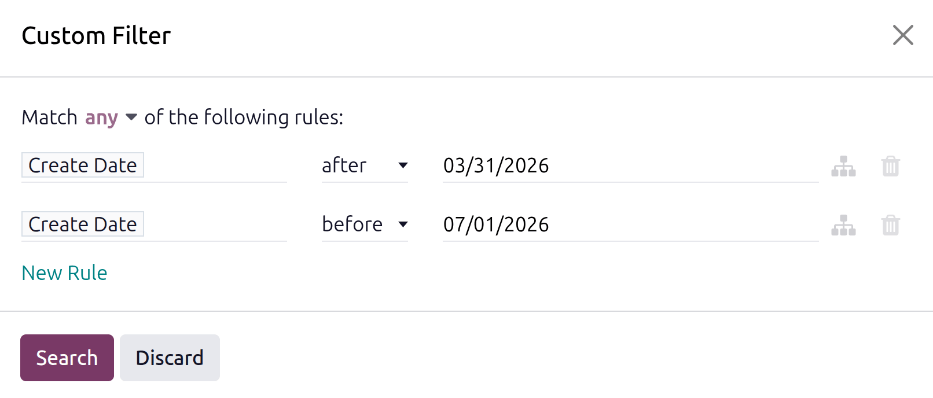
In the resulting Custom Filter pop-up window, select Create Date for the first drop-down field, then select after for the second drop-down field. Using the calendar selector, set the date to 03/31/2026. Click New Rule, and select before in the middle field. Using the calendar selector, set the last field to 07/01/2026, then click Search.
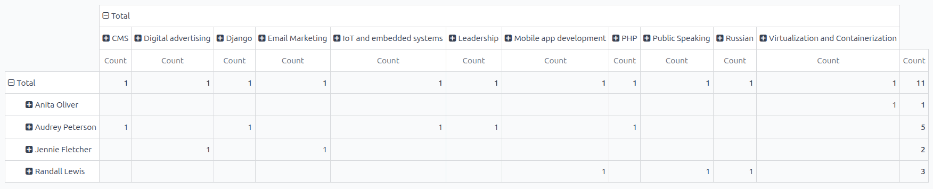
To view the number of employees and skills in further detail, click the (Pivot) icon in the top-right corner. This presents a pivot table with the employees populating the rows, and the only visible column represents the total number of improved skills.
To expand the columns to view which skill types had the most overall improvement, click Total above the Count column, then click Custom Group , then click Skill from the resulting drop-down menu. This expands all the improved skills, organized by individual skill.
Example
この例では、Audrey Petersonが第3四半期に最も向上し、5つのスキルが改善されました。