
支払
Odooでは、支払は請求書や請求書に自動的にリンクさせることも、後日使用するために独立したレコードにすることもできます:
支払いが 顧客請求書または仕入先請求書にリンク されている場合、請求書に記載された支払額が減額/精算されます。同一の顧客請求書に対して複数の支払いが可能です。
支払いが**顧客請求書または仕入先請求書にリンクされていない** 場合、顧客が会社に対して未払残高があるか、会社が仕入先に対して未払残高があります。これらの未払残高は、未払請求書/仕入先請求書の減額/精算となります。
支払方法
Several payment methods are available in Odoo to allow different configurations for different types of payments. Payment methods include manual payments (such as cash), checks, and batch payment files (such as NACHA and SEPA). Payment methods can be configured in the Incoming Payments and Outgoing Payments tabs of a bank or cash journal.
参照
POS用 支払方法
優先支払方法
A preferred payment method can be defined on a contact so that it is automatically selected when a payment is created for that contact. From the search bar, invoices and bills can be grouped by Payment Method to simplify group payments.
To set a preferred Payment Method for a customer or a vendor, go to or and select the customer or vendor. In the Sales & Purchase tab of the contact form, select the preferred Payment Method in the Sales section for invoice payments or in the Purchase section for vendor bill payments.
ちなみに
顧客 または 仕入先 リストビューから、顧客 または 仕入先 フィルタを解除すれば、すべての連絡先の全リストにアクセスできます。または、連絡先アプリから連絡先の全リストにアクセスすることもできます。
小切手
仕入請求書は、小切手で支払うことも可能 です。この専用の支払方法 を使用することで、小切手番号の管理や、Odooからの小切手の直接印刷が行えるようになります。
顧客からの小切手による支払については、デフォルトの 手動支払 支払方法を使用することも、小切手専用の支払方法を作成して、そのような支払をすばやく識別できるようにすることもできます。小切手 支払方法を作成するには、次の手順に従います。
に行き、 銀行 仕訳帳を選択します。
入金 タブで、明細追加 をクリックします。
支払方法 で、手動 を選択肢、
小切手を 名前 として選択します。
顧客からの支払いを 顧客請求書に対する または 顧客請求書に紐づかない支払いの場合 ににおいて、新しく追加された 小切手 支払方法を使用してください。
注釈
Odooで顧客からの小切手による支払いを登録しても、実際に資金が移動するわけではありません。支払いを完了させるには、小切手を銀行に預け入れる(入金する)必要があります。小切手を銀行に預け入れると、それが 銀行取引 として明細に表示されます。 その時点で、登録済みの支払いと 消込 を行ってください。
ちなみに
ベストプラクティスとしては、顧客からの小切手による支払いを登録する際に、小切手番号を メモ 欄に入力してください。
一括支払 を利用することで、複数の小切手をまとめて入金した際の消込作業を簡単に行うことができます。
顧客または仕入先請求書からの支払登録
顧客請求書または仕入先請求書に対して支払いを登録するには、以下の手順に従ってください:
顧客請求書または仕入請求書の画面で、支払 ボタンをクリックします。 支払 ウィンドウで、 仕訳帳 および 支払日 を選択します。
If previously set, the contact's preferred Payment Method is automatically selected but can be updated if necessary.
支払条件 <customer_invoices/payment_terms>`を使用している場合、:guilabel:`金額 は支払条件で定義された分割金額に基づいて自動的に設定されます。請求額全体を一括で支払う場合は、全額 をクリックしてください。
必要に応じて、メモ を編集してください。
支払作成 をクリック
支払が登録されると、顧客請求書または仕入先請求書は 支払処理中 とマークされます。
If no outstanding accounts are configured:
No journal entry is created.
The Amount Due is not updated.
After the invoice/bill is reconciled with a bank transaction, the invoice/bill is marked as Paid.
More payment information is accessible by clicking the Payments smart button.
注釈
なお、異なる通貨で銀行取引と消込された場合は、為替差損益を記録するための仕訳が自動で作成されます。
現金主義で処理される請求書と銀行取引を消込すると、現金主義による税額を記帳するための仕訳が自動的に作成されます。
If outstanding accounts are configured:
A journal entry is created.
The counterpart is reflected in an outstanding receipts or payments account.
The Amount Due is reduced based on the payment amount.
After the payment is reconciled with a bank transaction, the invoice/bill is marked as Paid.
More payment information is also accessible by clicking the (information icon) and clicking view.
ちなみに
銀行仕訳帳の支払方法で主要な銀行口座が未消込勘定として設定されている場合、顧客請求書または仕入請求書に対して全額の支払を登録すると、銀行との消込を行わずに、その顧客請求書/仕入請求書は直接 支払済 ステータスに移行します。
注釈
支払の消込を解除すると、その支払は顧客請求書や仕入先請求書との関連付けが解除されますが、支払自体は削除されません。
異なる通貨で支払が(未)消込された場合、為替差損益(逆転)額を記帳するために仕訳が自動的に作成されます。
顧客請求書に対して支払が(消込または消込解除)されると、現金主義税制に基づく税額(またはその取消額)を計上するための仕訳が自動的に作成されます。
オンライン支払
To make invoice payment more convenient, the Invoice Online Payment feature can be enabled, adding a Pay Now button to the customer portal. This allows customers to view invoices online and pay directly using their preferred payment method, simplifying the payment process.
To activate the online payment, go to , scroll down to the Customer Payments section to enable Invoice Online Payment, and click Save.
After creating the invoice, click Send to email it to the customer, who receives an email with a link to view the invoice on their customer portal. From there, they can click Pay Now to select a Payment Provider.
注釈
Make sure payment providers are configured correctly.
By default, Wire Transfer is the only enabled payment provider, but payment details must still be entered.
参照
As soon as the customer has paid, a payment for the invoice is registered, and the invoice is marked as In payment.
If the payment method configured in the payment provider has no outstanding accounts:
No journal entry created.
The Amount Due is not updated.
After the invoice is reconciled with a bank transaction, the invoice is marked as Paid.
If the payment method configured in the payment provider has outstanding accounts:
A journal entry is created.
The counterpart is reflected in an outstanding receipts or payments account.
The Amount Due is reduced based on the payment amount.
After reconciliation between the payment and the bank transaction, the invoice is marked as Paid.
顧客請求書や仕入先請求書に紐づいていない支払の登録
When a new payment is registered via or , it is not directly linked to an invoice or bill.
Stand-alone payments should not be registered without using outstanding accounts as:
No journal entries are created.
The payment cannot be linked to the invoice/bill.
The amount paid or received is not reflected in the accounting.
The Amount Due is not updated based on the payment amount.
For stand-alone payments using outstanding accounts:
A journal entry is created for the payment
The payment's journal entry matches the outstanding accounts with the account receivable or the account payable until the payment is manually matched with its related invoice or bill.
Then, reconciling the payment with the bank transaction completes the payment workflow.
支払照合
注釈
銀行消込 の処理中、記録と銀行取引を照合した際に借方と貸方の合計が一致しない場合、差額が残高として特定されます。この残高は、後で消込を行うか、ただちに損金処理(差額処理)する必要があります。
1件の顧客請求書または仕入請求書の場合
Odooでは、デフォルトで支払に対して仕訳が作成されません。そのため、照合すべき支払が存在しないことになります。
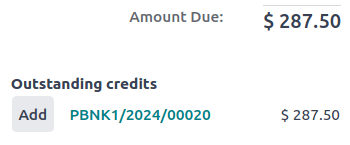
複数の顧客請求書または仕入先請求書の場合
デフォルトでは、Odoo における支払は仕訳を作成しません。そのため、照合する支払は存在しませんが、この機能はその他の仕訳明細との消込に引き続き利用できます。
The Payments matching or Auto-reconcile tool allows reconciling journal items with each other (i.e., payments with customer invoices or vendor bills) either individually or in batches:
Access the Accounting Dashboard.
Click the (ellipsis) button from the Customer Invoices or Vendor Bills journals, and select Payments Matching.
Alternatively, go to .
仕訳帳の項目を手動で 消込 するには、リストビューから個々の項目を選択し、 消込 をクリックします。
自動消込機能
自動消込 機能を使用するには、次の手順に従ってください:
消込する仕訳帳項目 リストビューで、売掛金または買掛金勘定 (またはその勘定の特定の連絡先グループの仕訳帳項目) の横にある 自動消込 をクリックします。
自動消込 ウィンドウで 消込 をクリックします。
自動消込 機能を使用するには、次の手順に従ってください:
消込する仕訳帳項目 リストビューで、売掛金または買掛金勘定 (またはその勘定の特定の連絡先グループの仕訳帳項目) の横にある 自動消込 をクリックします。
自動消込 ウィンドウで、仕訳帳の項目を照合する方法に応じて、消込 フィールドを設定します。
完全一致: 各借方仕訳帳の項目は、同じ値の対応する貸方仕訳帳の項目と一致します。
勘定科目をクリア: 同一の勘定科目から選択されたため、すべての消込済み仕訳明細には同じ照合番号が付与されます。
消込 をクリックします。
顧客請求書と仕入先請求書は、対応する支払と自動的に照合され、対応する 銀行取引 と 消込 されるまで 支払処理中 とマークされます。
複数の顧客請求書/クレジットノートや仕入先請求書/返金に対して支払を登録する(グループ支払)
複数の顧客請求書/クレジットノートや仕入先請求書/返金に対して支払を登録するには、以下の手順に従います:
または へ移動します。
リストビューで、検索バーをクリックし、支払方法 でグループ化し、関連する顧客請求書/クレジットノートまたは仕入先請求書/返金を選択し、支払 をクリックします。
支払 ウィンドウで、仕訳帳 および 支払日 を選択します。
取引先に優先 支払方法 が事前に設定されている場合は、自動的にその方法が選択されます。必要に応じて変更することも可能です。
支払条件 <customer_invoices/payment_terms>`を使用している場合、:guilabel:`金額 は支払条件で定義された分割金額に基づいて自動的に設定されます。請求額全体を一括で支払う場合は、全額 をクリックしてください。
同じ連絡先からの支払いをすべて 1 つの支払いにまとめるには、支払をグループ化 オプションを有効にしてください。別々の支払を作成するには、このオプションを無効のままにしてください。
支払作成 をクリックします。
複数の顧客または仕入先に対する 1 件の支払を登録する(一括支払)
一括支払により、複数の顧客からの支払をグループ化して、:doc:`照合 <bank/reconciliation>`を容易にできます。また、:doc:`小切手 <payments/pay_checks>`や現金支払を銀行にデポジットする場合や、:doc:`SEPA <payments/sepa_payments>`や:ref:`NACHA <l10n_us/nacha>`などの銀行支払ファイルを生成する場合にも便利です。
参照
支払照合
The Payments matching tool opens all unreconciled journal items and allows them to be processed individually, matching all payments and journal items. Go to or go to the Accounting Dashboard, click the (ellipsis) button from the Sales or Purchases journals, and select Payments Matching.
注釈
消込 の際に、借方と貸方の合計が一致しない場合、残高が残ります。これは後日消込するか、直接償却する必要があります。
一部支払を登録
一部支払を登録するには、関連する顧客請求書または仕入先請求書から 支払 をクリックします。
一部支払 (支払 金額 が顧客請求書または仕入先請求書の残高より少ない場合) の場合は、 支払 ウィンドウに 金額 を入力してください。