收入报告
Odoo 活动 应用程序可根据活动相关数据和分析,创建自定义报告。这些报告可侧重于*参与者*或*收入*。
以下文档主要介绍与事件 收入 相关的报告选项。
收入报告页面
To access the Revenues reporting page, navigate to .
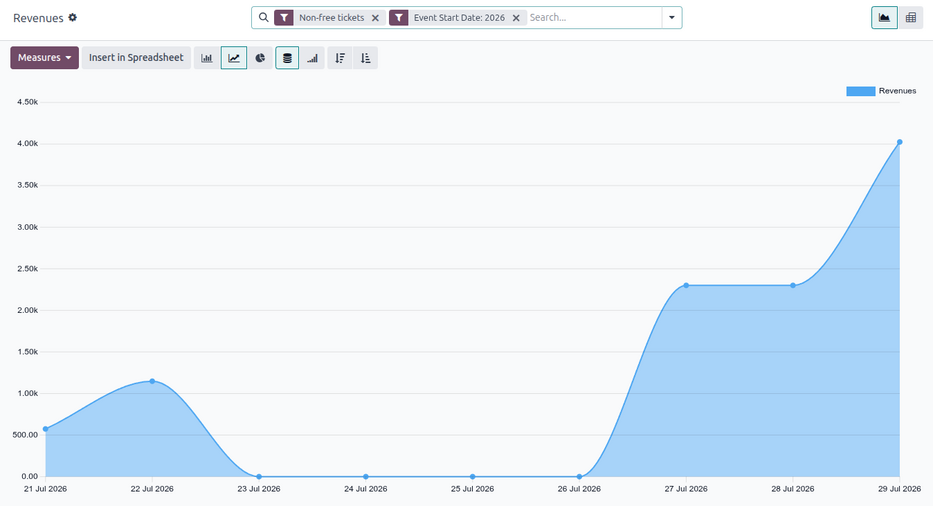
By default, the Revenues reporting page appears as a graph (a (Line Chart) with (Stacked) data). The default filters, Non-free tickets and Event Start Date: (current year), are applied in the search bar.
小技巧
要了解有关各种图表视图(和图表视图选项)的更多信息,请参阅 图表视图 文档。
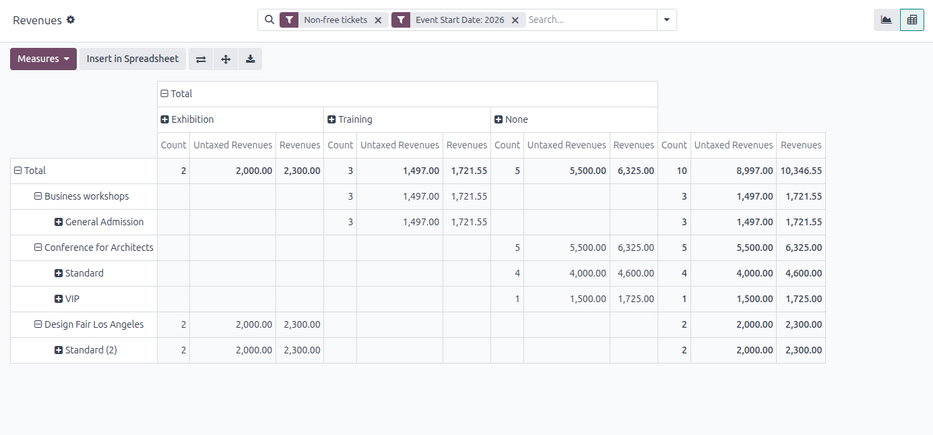
The Revenues reporting page can also be viewed as a pivot table, by clicking the (Pivot) icon in the upper-right corner.
计量值
Choosing specific measures allows users to customize reporting pages.
Clicking the Measures drop-down button reveals the following options:
Revenues: Shows the revenues generated from events.
Untaxed Revenues: Shows the untaxed revenues generated from events.
Count: Shows the total number of registrants who attended events.
注解
在图表视图中,一次只能选择一个 计量 选项。
选择透视选项时,默认情况下会选择所有 计量 选项。
筛选器和分组选项
To reveal a drop-down menu of filter and grouping options, click the (down arrow) next to the search bar.
The drop-down menu allows users to set Filters and Group By options.
注解
如果已从 筛选 列中选择了与时间相关的选项(例如默认的 活动开始日期:年 筛选器),则会出现 比较 列,其中包含已选择的相应时间相关筛选器选项的比较选项。
一次只能从 比较 列中选择**一个**选项。
其他资料
筛选器选项
The Filters column in the search bar’s drop-down menu allows users to restrict the data to specific criteria.
Multiple options in the Filters column can be selected at once. Options can be applied to any view.
筛选 列包含以下选项:
Non-free tickets: Filter by event tickets/registrations that are not free.
Free: Filter by event tickets/registrations that are free.
Pending payment: Filter by event tickets/registrations that are purchased but are pending payment.
Sold: Filter by event tickets/registrations that are sold and paid for.
Registration Date: Filter by a specific registration date. Click the (down arrow) icon to reveal a list of month, quarter, and year options.
Upcoming/Running: Filter by current or future events.
Past Events: Filter by completed events.
Event Start Date: Filter by a specific event start date. Click the (down arrow) icon to reveal a list of month, quarter, and year options.
Event End Date: Filter by a specific event end date. Click the (down arrow) icon to reveal a list of month, quarter, and year options.
Published Events: Filter by published events.
Add Custom Filter: Create a custom filter to analyze event-related revenue data.
按选项分组
The Group By column in the search bar’s drop-down menu allows users to group the data by specific criteria.
可同时选择多个 分组方式 选项。
分组方式 列有以下选项:
活动类型:根据活动类型对数据进行分组。
活动:将数据组织成单个组,按活动分隔。
产品:根据活动注册产品对数据进行分组。
门票:根据参与者购买的活动门票类型分组数据。
注册状态:根据注册状态对数据进行分组。
销售订单状态:根据与事件相关的销售订单状态对数据进行分组。
客户:根据客户记录对数据进行分组。
Add Custom Group: Create a custom group to organize data by additional fields. Click the (down arrow) icon to reveal a drop-down of grouping options. Multiple selections can be made.
报告样本:活动门票分析(图表)
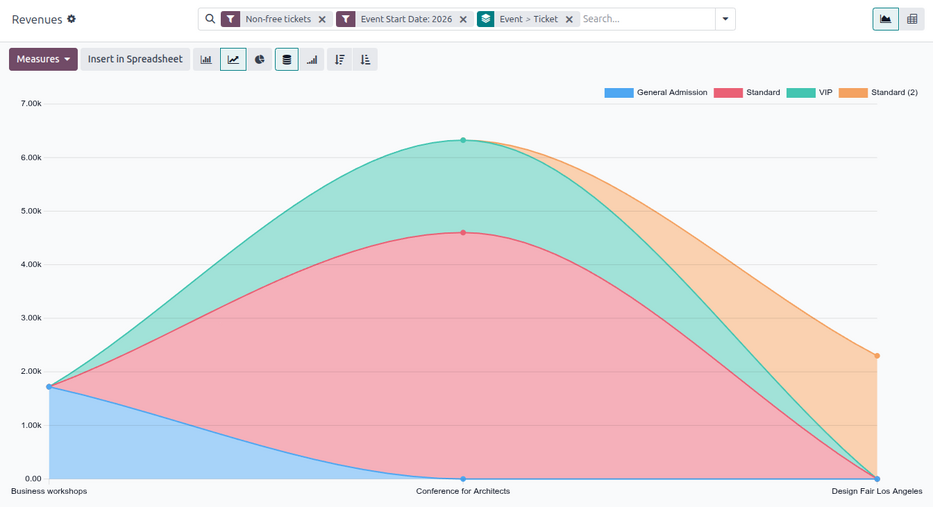
The following is an example of how various filters and grouping options can be used to compare the distributions of paid tickets and free tickets for published events, organized by ticket type and event.
To create this report, navigate to . Stay in the default graph view but remove the default filters from the search bar.
Then, click the (down arrow) next to the search bar. From here, select Free and Sold from the Filters column.
To view data related only to already published events, select the Published Events option in the Filters column.
Next, in the Group By column, select the Event and Ticket options, in that order. Doing so first groups the data by event, then by ticket type.
重要
The order in which the options are selected in the Group By column directly affects how the data is grouped and displayed on the report.
报告示例:活动类型分析(数据透视表)
The following is an example of how to create a report analyzing revenue by event type to determine which event types are most profitable.
First, navigate to and switch to the pivot table view by clicking the (Pivot) icon in the upper-right corner.
保留搜索栏中的默认筛选器(非免费门票`和 :guilabel:`活动开始日期:(年))。
Next, open the Measures drop-down menu and deselect the option for Count as this report focuses only on revenues.
然后,点击列标题上方的 总计,并从下拉菜单中选择 活动类型。
With these configurations, all revenues generated from the events and their corresponding registrations are organized by the event type.