
付款
在 Odoo 中,付款既可自动链接到发票或账单,也可作为独立记录供日后使用:
如果付款 与发票或账单 链接,则会减少/结算发票上的应付金额。可对同一张发票进行多次付款。
如果付款**未链接到发票或帐单**,则客户对公司有未结贷项,或者公司对供应商有未结借项。这些未清金额减少/结算未支付的发票/账单。
支付方式
Several payment methods are available in Odoo to allow different configurations for different types of payments. Payment methods include manual payments (such as cash), checks, and batch payment files (such as NACHA and SEPA). Payment methods can be configured in the Incoming Payments and Outgoing Payments tabs of a bank or cash journal.
其他资料
支付方式 适用于销售点
首选支付方式
A preferred payment method can be defined on a contact so that it is automatically selected when a payment is created for that contact. From the search bar, invoices and bills can be grouped by Payment Method to simplify group payments.
To set a preferred Payment Method for a customer or a vendor, go to or and select the customer or vendor. In the Sales & Purchase tab of the contact form, select the preferred Payment Method in the Sales section for invoice payments or in the Purchase section for vendor bill payments.
小技巧
通过移除 客户 或 供应商 筛选器,从 客户 或 供应商 列表视图访问所有联系人的完整列表。或者,通过联系人应用程序访问完整的联系人列表。
检查
供应商账单可通过支票 使用专用的外发付款方法支付,该方法允许追踪支票号码,并可直接从 Odoo 打印支票。
对于收到的客户支票付款,您可以使用默认的 手动付款 付款方式,也可以创建专门用于支票的付款方式,以帮助快速识别此类付款。要创建 支票 付款方式,请按以下步骤操作:
进入 并选择 银行 日记账。
在 收款 选项卡中,点击 添加一行。
在 付款方式 中,选择 手动,然后在 名称 字段中输入`支票`。
当 基于发票 或 与发票无关 登记客户付款时,使用新的 支票 付款方式。
小技巧
作为最佳实践,在登记客户支票付款时,请在 备忘录 中填写支票号码。
:doc:`批量付款 <payments/batch>`可以简化包含多张支票的存款核销流程。
登记开票或账单付款
要为发票或账单登记付款,请按以下步骤操作:
在客户发票或供应商账单上点击 付款。在 付款 窗口中,选择 日记账 和 付款日期。
If previously set, the contact’s preferred Payment Method is automatically selected but can be updated if necessary.
若使用 付款条件,金额 将根据付款条件定义的分期金额自动设置。如需支付全额,请点击 全额支付。
必要时可编辑 备注。
点击 创建付款。
付款登记后,客户发票或供应商账单将标记为 付款中。
If no outstanding accounts are configured:
No journal entry is created.
The Amount Due is not updated.
After the invoice/bill is reconciled with a bank transaction, the invoice/bill is marked as Paid.
More payment information is accessible by clicking the Payments smart button.
注解
若银行交易以不同币种完成对账,系统将自动生成会计分录,以记录汇兑损益金额。
当现金收付制下的发票与银行交易对账时,系统会自动生成会计分录,以记录现金制税额。
If outstanding accounts are configured:
A journal entry is created.
The counterpart is reflected in an outstanding receipts or payments account.
The Amount Due is reduced based on the payment amount.
After the payment is reconciled with a bank transaction, the invoice/bill is marked as Paid.
More payment information is also accessible by clicking the (information icon) and clicking view.
小技巧
若银行日记账的付款方式将主银行账户设为未清账户,则在发票或账单上登记全额付款时,系统会直接将其状态变更为 已支付,而无需进行银行对账。
注解
取消付款对账会解除其与发票或账单的关联,但不会删除该付款记录。
如果付款以不同币种(取消)对账,系统会自动生成会计分录以记录汇兑损益(或冲销)金额。
如果付款在启用现金收付制税务的发票上(取消)对账,系统会自动生成会计分录以记录现金制税额(或冲销)。
在线支付
To make invoice payment more convenient, the Invoice Online Payment feature can be enabled, adding a Pay Now button to the customer portal. This allows customers to view invoices online and pay directly using their preferred payment method, simplifying the payment process.
To activate the online payment, go to , scroll down to the Customer Payments section to enable Invoice Online Payment, and click Save.
After creating the invoice, click Send to email it to the customer, who receives an email with a link to view the invoice on their customer portal. From there, they can click Pay Now to select a Payment Provider.
注解
Make sure payment providers are configured correctly.
By default, Wire Transfer is the only enabled payment provider, but payment details must still be entered.
其他资料
:doc:/applications/finance/payment_providers
As soon as the customer has paid, a payment for the invoice is registered, and the invoice is marked as In payment.
If the payment method configured in the payment provider has no outstanding accounts:
No journal entry created.
The Amount Due is not updated.
After the invoice is reconciled with a bank transaction, the invoice is marked as Paid.
If the payment method configured in the payment provider has outstanding accounts:
A journal entry is created.
The counterpart is reflected in an outstanding receipts or payments account.
The Amount Due is reduced based on the payment amount.
After reconciliation between the payment and the bank transaction, the invoice is marked as Paid.
登记不与开票或账单关联的付款
When a new payment is registered via or , it is not directly linked to an invoice or bill.
Stand-alone payments should not be registered without using outstanding accounts as:
No journal entries are created.
The payment cannot be linked to the invoice/bill.
The amount paid or received is not reflected in the accounting.
The Amount Due is not updated based on the payment amount.
For stand-alone payments using outstanding accounts:
A journal entry is created for the payment
The payment’s journal entry matches the outstanding accounts with the account receivable or the account payable until the payment is manually matched with its related invoice or bill.
Then, reconciling the payment with the bank transaction completes the payment workflow.
付款匹配
注解
在 银行对账 过程中,若系统记录的借记总额与银行交易不一致,将识别出未清余额。该余额必须后续完成对账或立即核销。
针对单张发票或账单
默认情况下,Odoo 中的付款不会生成会计分录,因此不存在可匹配的付款记录。
A blue banner appears on top of the invoice/bill when validating it, and an outstanding payment exists for this specific customer or vendor. To match it with the invoice or bill, click Add under Outstanding Credits or Outstanding Debits.
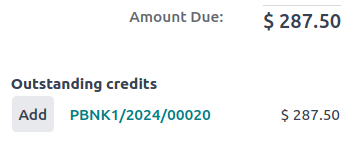
然后,发票或账单被标记为 付款中,直到付款与相应的 银行交易 对账。
针对多张发票或账单
默认情况下,Odoo 付款不生成会计分录,因此无直接付款记录可匹配,但仍可通过此功能关联其他日记账项目。
The Payments matching or Auto-reconcile tool allows reconciling journal items with each other (i.e., payments with customer invoices or vendor bills) either individually or in batches:
Access the Accounting Dashboard.
Click the (ellipsis) button from the Customer Invoices or Vendor Bills journals, and select Payments Matching.
Alternatively, go to .
如需手动 核销 日记账项目,在列表视图中勾选目标项目后点击 核销 即可。
自动对账功能
要使用 自动对账 功能,请按照以下步骤操作:
在 待对账日记账项目 列表视图中,点击应收或应付账款(或该账户中特定联系人的日记账项目组)旁边的 自动对账。
在 自动对账 窗口中,点击 对账。
要使用 自动对账 功能,请按照以下步骤操作:
在 待对账日记账项目 列表视图中,点击应收或应付账款(或该账户中特定联系人的日记账项目组)旁边的 自动对账。
在 自动对账 窗口,根据匹配日记账项目的方式设置 对账 字段:
完美匹配:每个借记日记账项目都将与相同价值的相应贷记日记账项目匹配。
清理账户:所有核对过的日记账项目都会有相同的匹配编号,因为它们是从同一个账户中选择的。
点击 核销。
发票和账单自动与相应的付款匹配,并标记为 付款中 直到它们与相应的 银行交易 对账。
为多张发票/贷记单或账单/退款登记付款(批量付款)
要登记多张发票/贷记单或账单/退款的付款,请按以下步骤操作:
转到 或 。
在列表视图中,点击搜索栏,按 付款方式 分组,选择相关发票/贷记单或账单/退款,然后点击 付款。
在 付款 窗口中,选择 日记账 和 付款日期。
若已设置,系统将默认自动选择联系人的首选 支付方式,但必要时可手动修改。
若使用 付款条件,金额 将根据付款条件定义的分期金额自动设置。如需支付全额,请点击 全额支付。
要将同一联系人的所有付款合并为单笔付款,请启用 批量付款 选项,或不选中该选项以创建单独付款。
点击 创建付款。
为多个客户或供应商注册单笔付款(批量付款)
批量付款允许将多个客户的付款分组,以简化核销。在将支票或现金付款存入银行时,或生成银行付款文件(如SEPA或NACHA)时,它们也很有用。
其他资料
付款匹配
The Payments matching tool opens all unreconciled journal items and allows them to be processed individually, matching all payments and journal items. Go to or go to the Accounting Dashboard, click the (ellipsis) button from the Sales or Purchases journals, and select Payments Matching.
注解
在 对账 期间,如果借方和贷方的总和不一致,就会有余额。这部分余额需要在稍后进行调节,或者直接冲销。
登记部分付款
要登记部分付款,请点击相关发票或账单上的 付款。
在部分支付的情况下(支付的 金额 小于发票或账单上的剩余总金额),请在 支付 窗口中填写 金额。
在部分付款的情况下(当支付的 金额 小于发票或账单的剩余总金额时),付款差额 字段将显示未付余额。有两个选项:
保持打开:保持发票或账单打开,并用 部分 标记;
标记为已完全支付:在 差额过账至 字段中选择一个账户,并根据需要更改 标签。将创建日记账分录,以平衡与所选账户的应付或应收账款。
核对付款与银行交易
登记付款后,发票或账单的状态为 付款中。下一步是 :doc:` 将相关的 银行交易 行与发票或账单重新对账 <bank/reconciliation>`,以完成付款工作流程,并将发票或账单标记为 已付款。
登记付款后,发票或账单的状态为 付款中。下一步是 :doc:` 将付款与相关的 银行交易 行对账,以完成付款工作流程,并将发票或账单标记为 已付款。