
Argentina
Módulos
The following modules related to the Argentinian localization are available:
Nombre |
Nombre técnico |
Descripción |
|---|---|---|
Argentina - Contabilidad |
|
Default fiscal localization package, which represents the minimal configuration to operate in Argentina under the ARCA regulations and guidelines. |
Informes de contabilidad para Argentina |
|
Informe del libro de IVA e informe resumido de IVA. |
Facturación electrónica para Argentina |
|
Includes all technical and functional requirements to generate electronic invoices via web service, based on ARCA regulations. |
|
(optional) Allows the user to see Identification Type and ARCA Responsibility in the eCommerce checkout form to create electronic invoices. |
|
|
Permite registrar las retenciones durante el pago de una factura. |
Nota
Los módulos principales de la localización se instalan automáticamente con la localización. El resto se puede instalar manualmente.
Descripción general de la localización
The Argentinian localization package ensures compliance with Argentinian fiscal and accounting regulations. It includes tools for managing taxes, fiscal positions, reporting, and a predefined chart of accounts tailored to Argentina’s standards.
The Argentinian localization package provides the following key features to ensure compliance with local fiscal and accounting regulations:
Chart of accounts: a predefined structure tailored to Argentinian accounting standards
Taxes: pre-configured tax rates, including standard VAT, zero-rated, and exempt options
Posiciones fiscales (mapeo de impuestos y cuentas): ajustes fiscales automatizados basados en el estado de registro del cliente o proveedor
Plan contable
Three distinct chart of accounts packages are available when configuring the Argentinian fiscal localization. The choice of package depends on the company’s ARCA responsibility type and reflects the different levels of fiscal complexity required:
Monotributista (227 accounts): Generic chart of accounts Argentina single taxpayer / basis
Exento (290 accounts): Argentine generic chart of accounts for exempt individuals
Responsable Inscripto (298 accounts): Argentine generic chart of accounts for registered accountants.
Impuestos
As part of the localization module, taxes are created automatically with their related financial account and configuration, e.g., 73 taxes for Responsable Inscripto.
Argentina has several tax types; the most common ones are:
VAT: Regular VAT with various percentages.
Perception: Advance payment of a tax that is applied to invoices.
Retention: Advance payment of a tax that is applied to payments.
Some Argentinian taxes are not commonly used for all companies, and are therefore labeled as inactive in Odoo by default. Before creating a new tax, check that the tax is not already included and labeled inactive.
Tipos de documentos
In some Latin American countries, like Argentina, accounting transactions such as invoices and vendor bills are classified by document types defined by the governmental fiscal authorities. In Argentina, the ARCA is the governmental fiscal authority that defines such transactions.
The document type is an essential piece of information that must be clearly displayed in printed reports, invoices, and journal entries that list account moves.
Each document type can have a unique sequence per journal where it is assigned. As part of the localization, the document type includes the country where the document is applicable (this data is created automatically when the localization module is installed).
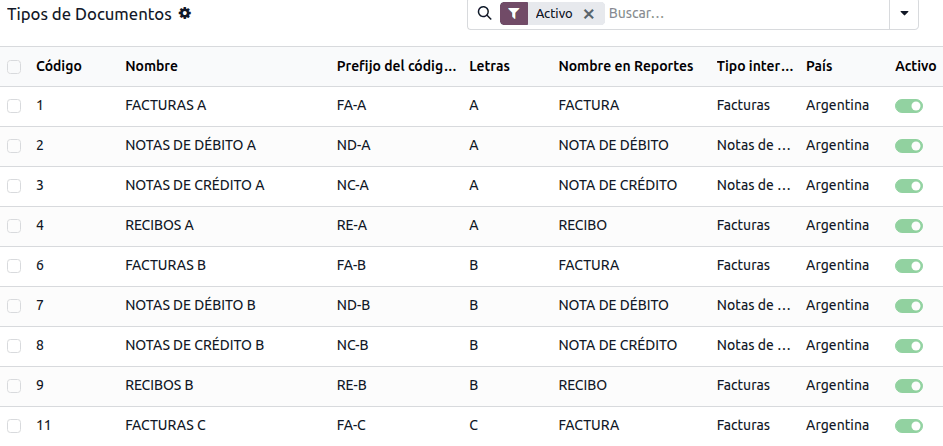
The required information about Document Types is included by default, so no further configuration is necessary in the Document Types view.
Nota
The list displayed below is not exhaustive and does not include all available document types.
Truco
Several Document Types are inactive by default, but can be activated as needed.
Cartas
En Argentina, los tipos de documento incluyen una letra que indica el tipo de transacción u operación. Por ejemplo, cuando una factura está relacionada con una:
B2B transaction, a document type A must be used.
B2C transaction, a document type B must be used.
Transacción de exportación, se debe utilizar un tipo de documento E.
The documents included in the localization already have the correct letter associated with each Document Type, and no further configuration is necessary.
Uso en facturas
El tipo de documento de cada transacción se determinará por:
The journal entry related to the invoice (if the journal uses documents).
The conditions applied depend on the issuer and receiver types (e.g., the buyer’s and vendor’s fiscal regime types).
Diarios
In the Argentinian localization, the journal can have a different approach depending on its usage and internal type. To configure journals, go to .
For sales and purchase journals, the Use Documents option can be activated, enabling Document Types to be linked to invoices and vendor bills.
If the sales or purchase journals do not have the Use Documents option activated, they will not be able to generate fiscal invoices, limiting their use case mostly to monitoring account moves related to internal control processes.
ARCA information (ARCA Point of Sale)
The ARCA POS System is a field that defines the type of ARCA POS to be used to manage the transactions for which the journal is created.
The ARCA POS defines the following:
The sequences of document types related to the web service.
La estructura y los datos del archivo de factura electrónica.
Servicios web
Web services help generate invoices for different purposes. Below are a few options to choose from in the ARCA POS System field:
wsfev1: Electronic Invoice: The most common service, used to generate invoices for document types A, B, C, M, with no item detail.
wsbfev1: Electronic Fiscal Bond: For those who invoice capital goods and wish to benefit from the Electronic Tax Bonds granted by the Ministry of Economy.
wsfexv1: Export Voucher: Used to generate invoices for international customers and transactions involving export processes; the related document type is type E.
Estos son algunos campos útiles que debe conocer al trabajar con servicios web:
ARCA POS Number: The number configured in ARCA to identify the operations related to this ARCA POS.
ARCA POS Address: The field related to the commercial address registered for the POS, which is usually the same address as the company. For example, if a company has multiple stores (fiscal locations), then ARCA will require the company to have one ARCA POS per location. This location will appear on the invoice report.
In ARCA, when configuring the electronic invoicing data, the following should be configured:
Monotributista: Factura Electrónica – Monotributo - WebServices
Exento: Facturación Electrónica - exento en IVA - WebServices
Responsable Inscripto: RECE para aplicativo y WebServices
Secuencias
For the first invoice, Odoo automatically synchronizes with ARCA and displays the last sequence used.
Nota
When creating Purchase Journals, specify if they are related to document types. When the Use Documents option is activated, there is no need to manually associate document type sequences, since the vendor provides the document number.
Informes
As part of the localization installation, financial reporting for Argentina is available in the Accounting dashboard. To access these reports, navigate to , and select the relevant report in the Argentinean Statements section.
To access the VAT book report, go to , click Report:, and select VAT book (AR).
Nota
Click the (cog) icon and select VAT Book (ZIP) or VAT Simple Report (ZIP) to generate the VAT Book or VAT Simple report ZIP file, respectively.
Resumen de IVA
This pivot table displays the monthly VAT totals. This report is for internal use and is not sent to the ARCA. To access it, go to .
IIBB - Ventas por jurisdicción
This pivot table displays the gross income for each jurisdiction. It serves as an affidavit for the corresponding taxes due, but is not submitted to the ARCA. To access it, go to .
IIBB - Compras por jurisdicción
This pivot table displays the gross purchases for each jurisdiction. It serves as an affidavit for the corresponding taxes due, but is not submitted to the ARCA. To access it, go to .
Empresa
Once the localization modules are installed, the first step is to set up the company’s record. In addition to the basic information, make sure to complete the Argentina-specific field, ARCA Responsibility Type, to define the company’s fiscal obligation and structure.
Contactos
Tipo de identificación e IVA
As part of the Argentinian localization, identification types defined by ARCA are available in the contact form. Information is essential for most transactions. Seven Identification Types are available by default, as well as 32 inactive types.
Nota
The complete list of Identification Types defined by ARCA is included in Odoo, but only the common ones are active.
ARCA responsibility type
In Argentina, the document type and corresponding transactions associated with customers and vendors are defined by the ARCA Responsibility Type. This field should be defined in the contact form.
Facturación electrónica
Configuración
Entorno
The ARCA infrastructure is replicated across two separate environments, testing and production.
Testing is provided so companies can test their databases until they are ready to move to the production environment. As these two environments are completely isolated from each other, the digital certificates issued in one instance are not valid in the other.
To select a database environment, go to , scroll down to the Argentinean Localization section, and choose either Testing (Prueba) or Production (Produccion).
ARCA certificates
The electronic invoice and other ARCA services use the Web Services (WS) provided by ARCA.
To enable communication with ARCA, follow these steps to request a Digital Certificate if you do not already have one:
Go to and scroll down to the Argentinean Localization section.
Generate renewal request: In the ARCA Web Services section, click Generate Renewal Request to generate a
.csr(certificate signing request) file to use in the ARCA portal to request the certificate.Obtain certificate (ARCA): Access the ARCA portal and follow the instructions described in this document to get a certificate.
Upload certificate and add private key (Odoo): To upload the certificate into Odoo, click the (Internal link) icon next to the Certificate field and select the corresponding file. Then add the existing private key that was created after clicking Generate Renewal Request.
Truco
When a created certificate expires, click Generate Renewal Request to generate a new certificate.
If you need to configure the Homologation Certificate, refer to the official ARCA documentation. It is possible to test electronic invoicing locally without a Homologation Certificate; the following message appears in the chatter when testing locally:

Contabilidad
Facturas
The information below applies to invoice creation once the contacts and journals are created and properly configured.
Nota
To handle invoice adjustments or corrections, credit notes and debit notes can also be created.
Asignación de tipo de documento
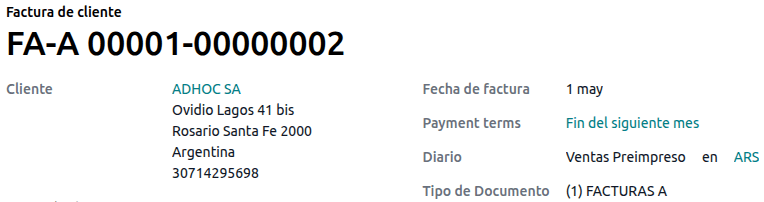
When the partner is selected, the Document Type field will be filled in automatically based on the ARCA document type:
Invoice for a customer IVA Responsable Inscripto, prefix A is the type of document that shows all the taxes in detail, along with the customer’s information.
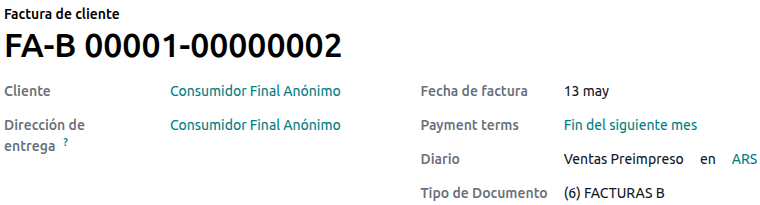
Invoice for an end customer, prefix B is the type of document that does not detail taxes, since the taxes are included in the total amount.
Factura de exportación, prefijo E es el tipo de documento que se utiliza en la exportación de bienes que muestra el incoterm.
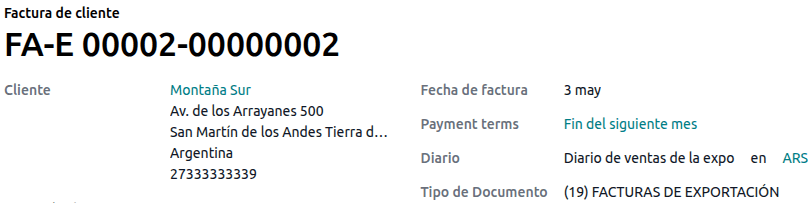
A pesar de que algunas facturas utilizan el mismo diario, es el campo Tipo de documento el que proporciona el prefijo y la secuencia.
The most common Document Type will be automatically defined for different combinations of ARCA responsibility type, but it can be updated manually before confirming the invoice.
Elementos de facturas electrónicas
When using electronic invoices, if all information is correct, the invoice is posted in the standard way unless an error needs to be addressed. Error messages indicate both the issue that needs attention and a proposed solution. If an error persists, the invoice remains in draft until the issue is resolved.
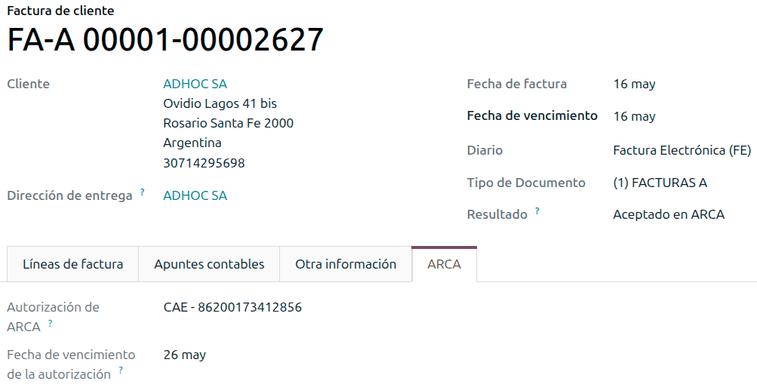
Once the invoice is posted, the information related to ARCA appears on the invoice, and the Result field indicates if the invoice has been Aceptado en ARCA or Aceptado con Observaciones.
In the ARCA tab, the following authorization information is displayed:
ARCA authorization: CAE number
Authorization Due date: deadline to deliver the invoice to the customers (normally 10 days after the CAE is generated)
Impuestos en facturas
Based on the ARCA Responsibility Type, the VAT tax can apply differently on the PDF report:
Tax excluded: In this case the taxed amount must be clearly identified in the report. This condition applies when the customer’s ARCA Responsibility type is Responsable Inscripto.
Tax amount included: This means that the taxed amount is included as part of the product price, subtotal, and totals. This condition applies when the customer has the following ARCA Responsibility type:
IVA Sujeto Exento
Consumidor Final
Responsable Monotributo
IVA liberado
Casos de uso especiales
Facturas de servicios
For electronic invoices that include Services, ARCA requires reporting the service start and end dates. To do so, fill in the Service Date field in the Other Info tab.
Nota
If the dates are not selected manually before the invoice is validated, the values will be automatically set to the first and last days of the invoice’s month.
Facturas de exportación
Invoices related to Exportation Transactions require a journal using ARCA POS System Export Voucher - Web Service to ensure the correct document types are associated.
When the customer selected in the invoice is configured with an ARCA responsibility type Cliente / Proveedor del Exterior - Ley N° 19.640, Odoo automatically assigns the:
Journal: related to the exportation Web Service
Exportation Document Type
Exempt Taxes
In the Other Info tab:
Invoice section - ARCA Concept: Products / Definitive export of goods
Accounting section - Fiscal position: Compras/Ventas al exterior
Nota
For exportation documents, complete the Incoterm field in the Accounting section of the Other Info tab.
Bono fiscal
The Electronic Fiscal Bond is used by those who invoice capital goods and wish to benefit from the Electronic Tax Bonds granted by the Ministry of Economy.
Para estas transacciones, es importante considerar los siguientes requisitos:
Currency (according to the parameter table) and invoice quotation
Impuestos
Zone
Detail each item
Code according to the Common Nomenclator of Mercosur (NCM)
Complete description
Unit Net Price
Quantity
Unit of measurement
Bonus
VAT rate
Factura de crédito electrónica MiPyme (FCE)
For SME invoices, several document types are classified as MiPyME, also known as Electronic Credit Invoice (FCE in Spanish). This classification develops a mechanism that improves financing conditions for small and medium-sized businesses and allows them to increase productivity by collecting early on credits and receivables issued to their clients and/or vendors.
Para estas transacciones, es importante considerar los siguientes requisitos:
Tipos de documento específico (201, 202, 206, etc).
The emitter should be eligible for MiPyME transactions via ARCA.
The amount should be larger than 100,000 ARS.
A bank account type CBU must be associated with the emitter; otherwise, the invoice cannot be validated, with an error message such as the following:
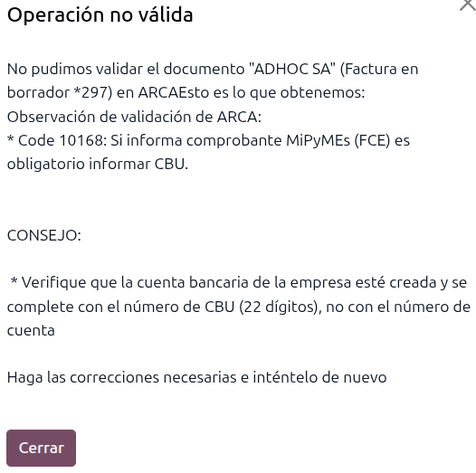
To set up the Transmission Mode, go to and scroll down to the Argentinean Localization section. Then, in the Default MiPyME FCE Transmission Option section, select either:
SCA - TRANSFERENCIA AL SISTEMA DE CIRCULACION ABIERTA
ADC - AGENTE DE DEPOSITO COLECTIVO
Nota
To change the transmission mode, access the related invoice form and, in the Other Info tab, update the FCE: Transmission Mode field in the Invoice section before confirming the invoice.
Changing the Transmission Mode on a specific invoice does not change the transmission mode selected in Settings.
When creating a Credit/Debit note related to an FCE document:
Use the Credit Note and Debit Note buttons in the related invoice form to transfer all information from the invoice to the new credit or debit note.
The document letter should match the originator document (either A or B).
The same currency as the source document must be used. When using a secondary currency, there is an exchange difference if the currency rate differs between the emission date and the payment date. Create a credit/debit note to decrease/increase the amount to pay in ARS.
When creating a credit note, there are two scenarios:
The FCE is rejected; then, the credit note should have the FCE: is Cancellation? option enabled, or
The credit note is created to annul the FCE document; then, the FCE: is Cancellation? option must be disabled.
Informe impreso de factura
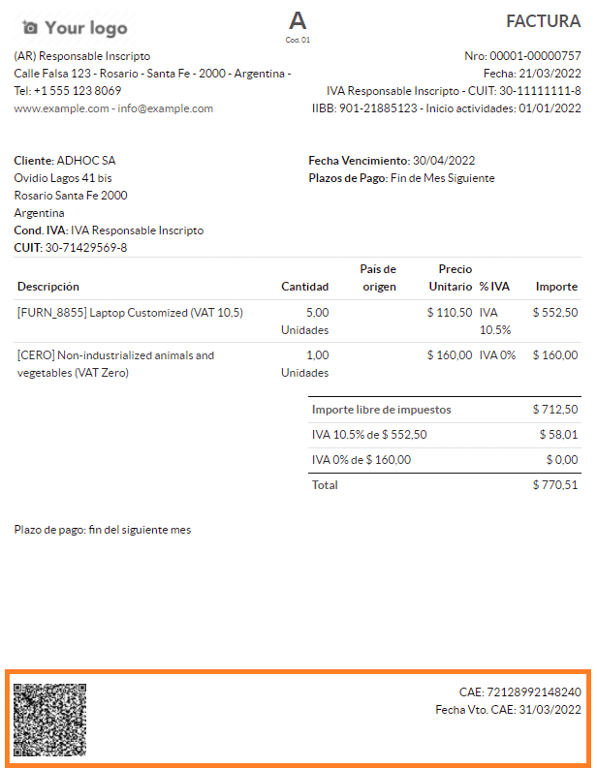
The PDF Report for electronic invoices validated by ARCA includes a QR code at the bottom of the page, which represents the CAE number. The expiration date is also displayed, as it is a legal requirement.
Solución de problemas y auditorías
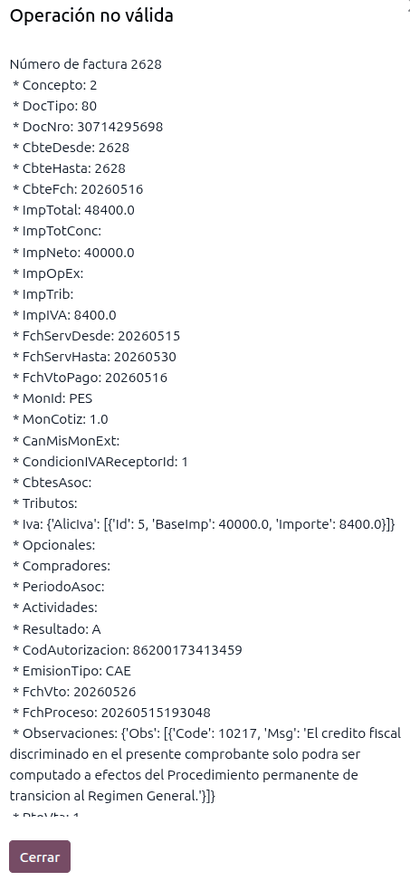
For auditing and troubleshooting purposes, detailed information can be obtained for an invoice number previously sent to ARCA. To retrieve this information, follow these steps:
Active el modo de desarrollador.
Go to .
In the Consult invoice in ARCA window, select the relevant Journal, Document Type, and Number. Then, click Get Invoice Detail.
Truco
To retrieve the last number used in ARCA for a specific Document Type and POS Number and use this reference for any potential issues with the sequence synchronization between Odoo and ARCA, select Get Last Invoice as the Type.
Facturas de proveedor
Based on the selected purchase journal for the vendor bill, the Document Type field is now required. This value is auto-populated based on the ARCA Responsibility Type of Issuer and Customer, but it can be changed if necessary.
The Document Number field must be entered manually, and the format will be validated automatically. However, if the format is invalid, an error message indicates the expected format.
The vendor bill number is structured the same way as customer invoices, except that the document
sequence is entered by the user in the following format: Document Prefix - Letter - Document
Number.
Validate vendor bill number in ARCA
As most companies have internal controls to verify that the vendor bill is related to a valid ARCA document, an automatic validation can be set.
To do so, go to , scroll down to the Argentinean Localization section, then set one of the following options under Verify Vendor Bills validity in ARCA:
Not available: No verification is performed (this is the default value).
Available: Verification is performed. If the number is invalid, a warning is displayed but the vendor bill can still be posted.
Required: Verification is performed. The vendor bill can only be posted if the number is valid.
Validar facturas de proveedor en Odoo
Once the vendor bill validation settings are enabled, click Verify on ARCA in the Authorization code field.
If the vendor bill cannot be validated in ARCA, the status is updated to Rejected in the Authorization code field, and the details are recorded in the chatter.
Casos de uso especiales
Conceptos sin impuestos
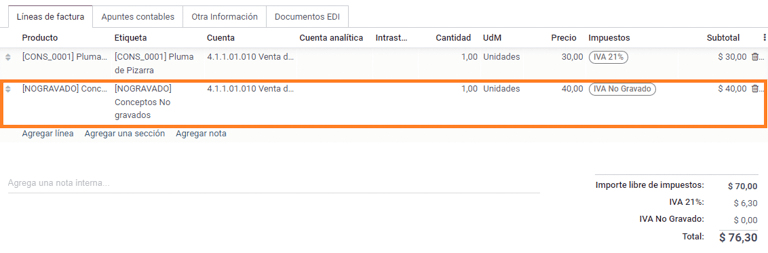
Some transactions include items that are not part of the VAT base amount, such as fuel and gasoline invoices.
The vendor bill will be recorded using one item for each product that is part of the VAT base amount, and an additional item to register the amount of the exempt concept.
Impuestos de percepción
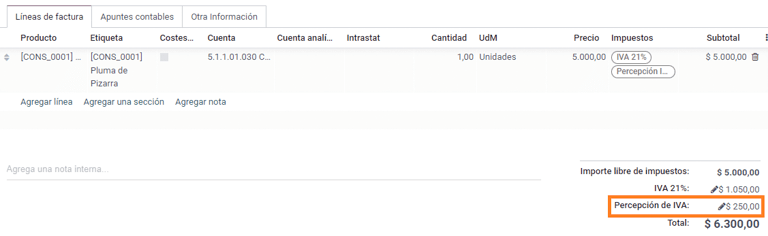
The vendor bill will be recorded using one item for each product that is part of the VAT base amount, and the perception tax can be added to any of the product lines. As a result, there will be one tax group for the VAT and another for the perception. The perception default value is always 0.10.
To edit the VAT perception and set the correct amount, you should use the Pencil icon next to the Perception amount. After the VAT perception amount has been set, the invoice can be validated.
Gestión de retención
Nota
Make sure the Argentina Payment Withholdings (l10n_ar_withholding) module is
installed.
The Argentinian fiscal localization module contains the necessary withholding records, which can be seen by navigating to and removing the default Sale or Purchase filter.
Las entradas de diario no se crean cuando se registran los pagos a menos que se configuren cuentas pendientes. Por lo tanto, para que esta función funcione correctamente, es importante verificar que todos los métodos de pago dentro de los diarios bancarios tengan configurada una cuenta de pago y recibo pendiente.
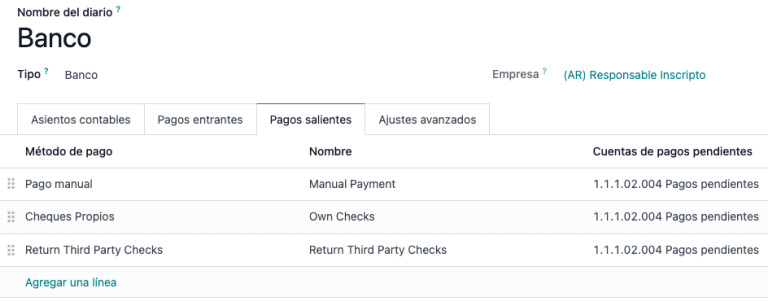
Esta configuración es crucial para la contabilización adecuada de las transacciones de retención con clientes y proveedores.
Nota
En Argentina, las retenciones representan la cancelación de una porción específica de la deuda total adeudada a un proveedor o una reducción en el pago total a cobrar de un cliente. Por lo tanto, se pueden registrar una o múltiples retenciones para cada pago aplicado a una factura.
Configuración
While Odoo already creates most of the required withholdings inside the Taxes menu, in several cases it is necessary to apply or modify configurations to correctly calculate the withholding amount on vendor payments. The following withholding types are available:
Ganancias
For Earnings withholdings, Odoo already has a record for each regime group, which is listed under the tax name and the ARCA code.
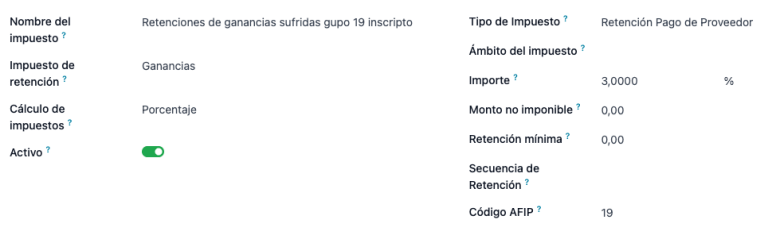
Each of these records is ready to be used. As a best practice, the configuration should be double-checked to make sure it is updated and well-applied. The fields to validate are:
Monto: Este es el porcentaje del monto total del pago que se retiene.
Monto No Imponible: Hasta este monto, la retención no aplica.
Retención Mínima: Si el monto de retención calculado es menor que este valor, el monto total de retención se establece en
0.0.Withholding Sequence: This field automates the capture of a withholding number under the payment line. If this field is not set, a number is manually captured while adding a withholding to a payment.
Escala de Ganancias
En este caso particular, no es necesario establecer un porcentaje. En su lugar, esta retención se calcula según el valor del campo Escala.
To view, modify, or create new scales, navigate to . By default, the Argentinian localization is preconfigured with two main scales. However, scales should be created and updated as necessary to suit a business’s needs.
Nota
Earnings scales are cumulative, which means that Odoo keeps track of the different records created for a bill and automatically calculates the correct withholding amount.
Monto total de IIBB
In this case, the necessary records related to the applicable province must be created. The withholding amount is calculated based on the percentage Amount set on the tax configuration. Since Odoo does not automatically synchronize the percentages applicable to each province, this information must be manually updated.
The recommendation, in this case, is to always duplicate and apply the different configurations to each record to safeguard technical configurations that allow the proper calculation and accounting of the withholding.
IIBB sin impuestos
The configuration of non-taxable gross income withholdings is very similar to that of a total amount withholding, so the percentage Amount in each record must be maintained. However, Odoo comes preconfigured with several records that apply to different provinces. The difference, in this case, is that it is not necessary to establish a non-taxable amount or minimum withholding for this record type.
Asignación de retenciones a contactos
Once the proper configuration is set on each possible withholding for partners, the applicable withholdings must be assigned to each contact. To do this, open the Contacts app and select the desired partner. In the Accounting tab, find the Purchase Withholdings table.
Al usar los campos adicionales Desde fecha y Hasta fecha, se puede automatizar la aplicabilidad de múltiples retenciones en diferentes rangos de fechas. El campo ref te permite aplicar un número de control interno a cada línea de retención, que es solo para referencia interna, por lo que no afecta ninguna transacción y no es visible en ellas. Estos campos son accesibles desde el menú (ajustar configuración).
From Date: The start of the withholding date range.
To Date: The end of the withholding date range.
ref: Apply an internal control number to each withholding line that is only visible for internal reference and does not affect any transactions.
Cálculo y aplicación automática de retenciones por pago
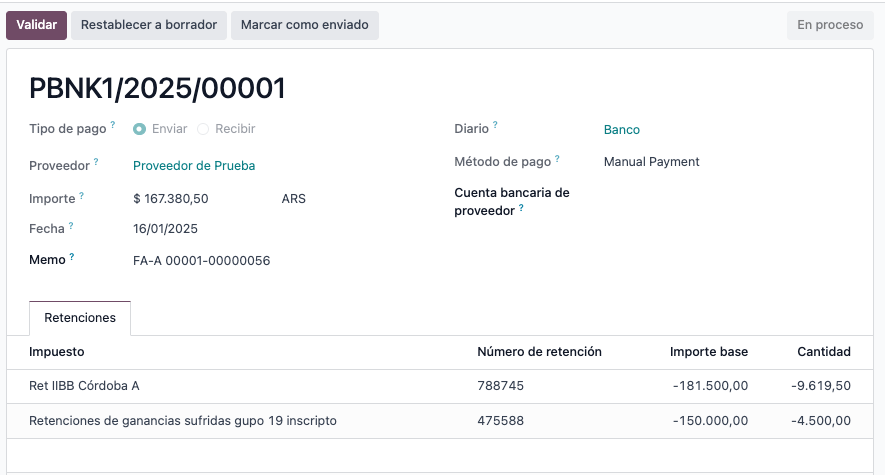
Al aplicar nuevos pagos a facturas de proveedor, Odoo aplica y calcula automáticamente la retención adecuada en el pago. Según la configuración del registro, puede ser necesario usar un número de referencia para cada línea de retención.
Se pueden añadir más retenciones o editar las retenciones calculadas si es necesario.
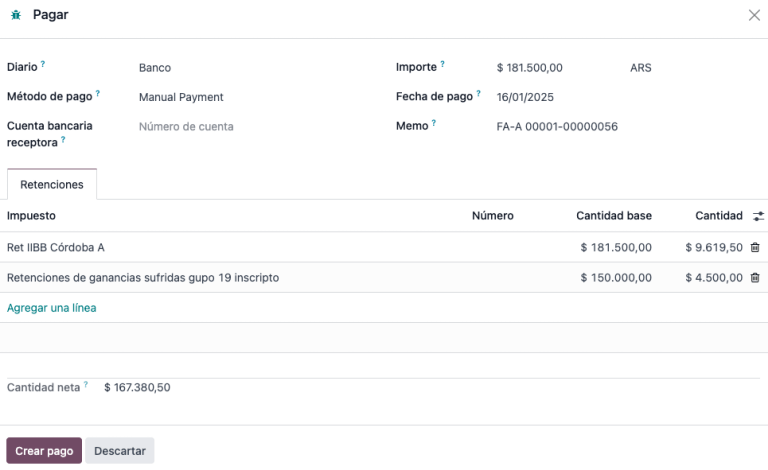
Importante
The amount of the debt to be cancelled equals the total payment amount. However, Odoo still captures the net amount (i.e., the amount to be reconciled with the bank), which will be represented as the payment amount after the withholding application.
Gestión de cheques
Nota
Make sure to install the Third Party and Deferred/Electronic
Checks Management (l10n_latam_check) module.
Este módulo activa la configuración necesaria para diarios y pagos para:
Create, manage, and control your different types of checks.
Optimize the management of own checks and third-party checks.
Have an easy and effective way to manage expiration dates for your own and third-party checks.
Once all the configurations are set for the Argentinian electronic invoice flow, it is also needed to complete certain configurations for the own checks and third-party checks flows.
Cheques propios
Configure el diario bancario que se usa para crear sus cheques propios en , seleccione el diario bancario y abra la pestaña Pagos salientes.
Checks should be available as a Payment Method. If not, click Add a line and type
Checksunder Payment Method to add them.Active la opción Usar cheques electrónicos y diferidos.
Nota
This last configuration disables the printing ability but:
allows check numbers to be entered manually
adds a field to indicate the payment date of the check
Gestión de cheques propios
Own checks can be created directly from the vendor bill. For this process, click Register Payment.
In the Pay window, select the bank journal from which the payment is to be made and set the Check Cash-In Date and Amount.
Nota
Para gestionar cheques actuales debe dejar el campo Fecha de entrada de efectivo vacío o completarlo con la fecha actual. Para gestionar cheques diferidos, el campo Fecha de entrada de efectivo debe tener una fecha en el futuro.
To manage your existing own checks, navigate to . This window displays critical information, including the dates checks must be paid, the total number of checks, and the total amount paid in checks.
Es importante tener en cuenta que en la lista solo aparecerán los cheques que aún no están conciliados con un estado de cuenta bancaria, es decir, aquellos que aún no han sido debitados del banco. Puede verificar con el campo Corresponde con un estado de cuenta bancario. Si desea ver todos sus cheques propios, haga clic en el símbolo X para eliminar el filtro Sin conciliación bancaria.
Cancelar un cheque propio
To cancel an own check created in Odoo, navigate to and select the check to be cancelled, then click Void Check. This breaks the reconciliation between vendor bills and bank statements, leaving the check marked as Cancelled.
Third-party checks
To register payments with third-party checks, two specific journals must be configured. To do so, navigate to and create two new journals:
Third-Party ChecksRejected Third-Party Checks
Nota
You can manually create additional journals if you have multiple points of sale and need journals for those.
To create the Third-Party Checks journal, click New and configure the following:
Type
Third-Party Checksas the Journal Name.Select Cash as Type.
In the Journal Entries tab, set Cash Account: to
1.1.1.02.010 Cheques de
Terceros
, input a Short Code of your choice, and select a Currency.
The available payment methods are listed in the Payments tab:
For new incoming third-party checks, click Add a line in the Incoming Payments tab and select New Third Party Checks. This method is used to create new third-party checks.
For incoming and outgoing existing third-party checks, click Add a line in the Incoming Payments tab and select Existing Third Party Checks. Repeat the same step for the Outgoing Payments tab. This method is used to receive and/or pay vendor bills using already existing checks, as well as for internal transfers.
Truco
You can delete pre-existing payment methods that appear by default when configuring third-party check journals.
The Rejected Third-Party Checks journal must also be created and/or configured. This journal is used to manage rejected third-party checks and can be used to send checks rejected at the time of collection or upon receipt from vendors.
To create the Rejected Third-Party Checks journal, click New and configure the following:
En el Nombre del diario escriba
Cheques rechazados de terceros.En Tipo seleccione Efectivo.
In the Journal Entries tab, set Cash Account: to
1.1.1.01.002 Rejected
Third Party Checks
, input a Short Code of your choice, and select a Currency.
Use the same payment methods as the Third-Party Checks journal.
New third-party checks
To register a new third-party check for a customer invoice, click Register Payment. In the pop-up window, select Third-Party Checks as the journal for the payment registration.
Select New Third Party Checks as Payment Method, and fill in the Check Number, Payment Date, and Check Bank. Optionally, you can manually add the Check Issuer Vat, but this field is automatically filled with the customer’s VAT number as it appears on the invoice.
Existing third-party checks
To pay a vendor bill with an existing check, click Register Payment. In the pop-up window, select Third Party Checks as the journal for the payment registration.
Seleccione Cheques existentes de terceros como método de pago y seleccione un cheque del campo Cheque. El campo muestra todos los cheques existentes disponibles para ser utilizados como pago de facturas de proveedores.
When an existing third-party check is used, you can review the operations related to it. For example, you can see if a third-party check made to pay a customer invoice was later used as an existing third-party check to pay a vendor bill.
To do so, either go to or , depending on the case, and click on a check. In the Check Current Journal field, click on => Check Operations to bring up the check’s history and movements.
El menú también muestra información importante relacionada con estas operaciones, como:
El tipo de pago que permite clasificar si se trata de un pago enviado a un proveedor o de un pago recibido de un cliente.
El diario en el que está registrado actualmente el cheque.
El contacto asociado a la operación (ya sea cliente o proveedor).
Venta directa de productos de liquidez
Las ventas directas de productos de liquidez se utilizan para ventas que involucran a terceros. En estas ventas, tanto el vendedor como la empresa propietaria de los bienes pueden registrar sus respectivas ventas y compras.
Nota
Install the Argentinean Electronic Invoicing module
(l10n_ar_edi) to use this feature.
Configuración
Diario de compra
A purchase journal is needed to generate an electronic vendor bill with a document type Liquidity Product. This journal must be synchronized with ARCA, as it will be used to generate the electronic document for the liquidity product.
To modify the existing purchase journal or create a new one, navigate to . Then, select the existing purchase journal or click New, and fill in the following required information:
Type: Select Purchase.
Use Documents: Check this field to select the electronic document type.
Is ARCA POS?: Check this field to generate electronic documents. Three additional fields appear:
ARCA POS System: Select Electronic Invoice - Web Service from the drop-down menu to send the electronic document to ARCA via web service.
ARCA POS Number: The number configured in ARCA to identify the operations related to this ARCA POS.
ARCA POS Address: The field related to the commercial address registered for the POS, which is usually the same address as the company. For example, if a company has multiple stores (fiscal locations) then ARCA will require the company to have one ARCA POS per location. This location will be printed in the invoice report.
Diario de ventas
A sales journal is needed to record the invoice when a product is sold to a third party that will then sell the same product. This journal will not be synced with ARCA as the invoice will not be electronic.
To modify the existing sales journal or create a new one, navigate to . Then, access the sales journal or click New, and fill in the following required information:
Tipo: seleccione Ventas.
Use Documents: check this field on the journal to select the electronic document type (in this case, the electronic invoice).
Flujo de facturación
Once all configurations are set, the Liquidity Product Vendor Bill will be generated by the company selling the product on behalf of another party. For example, a distributor of a specific product.
Facturación electrónica para comercio electrónico
Install the Argentinean eCommerce (l10n_ar_website_sale)
module to enable the following features and configurations:
Allow clients to create online accounts for eCommerce purposes.
Compatibilidad con los campos fiscales necesarios en la aplicación Comercio electrónico.
Reciba pagos por órdenes de venta en línea.
Genere documentos electrónicos desde la aplicación Comercio electrónico.
Configuración
Once all configurations for the Argentinian electronic invoice flow are complete, additional configurations must be completed to integrate the eCommerce flow.
Registro de la cuenta del cliente
Para configurar tu sitio web para cuentas de clientes, sigue las instrucciones de la documentación de checkout.
Facturación automática
To generate electronic documents in the sales process, go to and enable the Automatic Invoice option in the Invoicing section to automatically generate the required electronic documents when the online payment is confirmed.
Nota
Since an online payment must be confirmed for the Automatic Invoice feature to generate the document, a payment provider must be configured for the related website.
Productos
Para poder facturar sus productos al confirmar un pago en línea, diríjase al producto deseado desde . En la pestaña Información general, elija Cantidades ordenadas como Política de facturación y defina los Impuestos del cliente necesarios.
Flujo de facturación para Comercio electrónico
Once all configurations mentioned above are set, clients can complete the following required steps in the Argentinian eCommerce flow to enter fiscal fields during checkout.
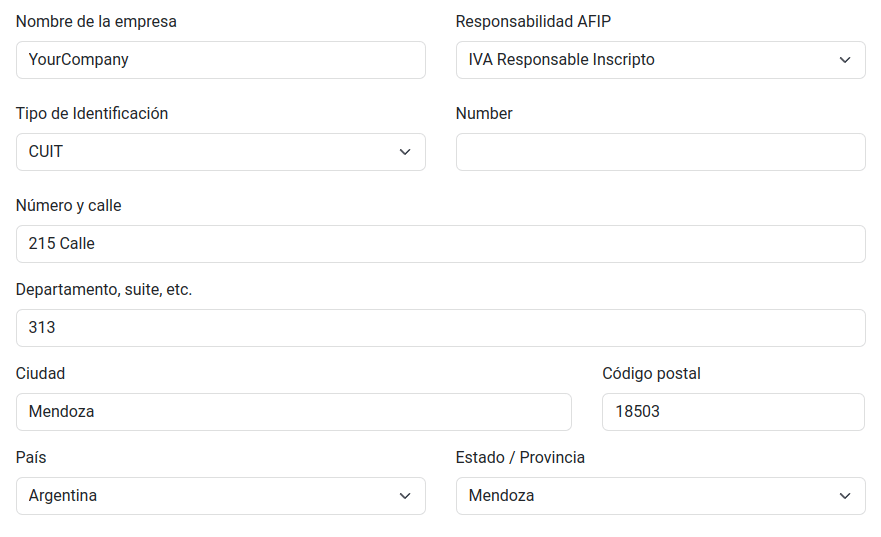
Fiscal fields are available for input during checkout once the Country field is set to
Argentina. Entering the fiscal data enables the purchase to be recorded in the corresponding
electronic document.
When the client makes a successful purchase and payment, the necessary invoice is generated with the corresponding layout and fiscal stamps stated in the Invoice printed report.
Ver también