
硬件
Odoo Point of Sale supports integration with a variety of hardware, including payment terminals and cash drawers, as well as customer displays, scales, barcode scanners, ePOS printers, and in-store electronic shelf labels.
客户显示器
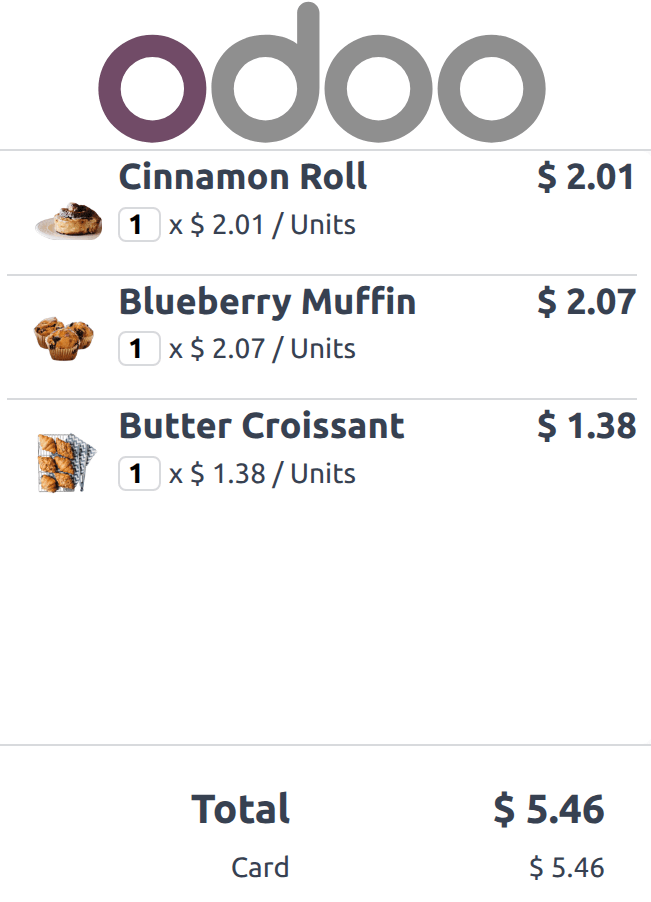
The customer display feature provides real-time updates on a secondary screen for customers during the checkout process. This screen shows the items in the cart, the subtotal as items are added, and details throughout the payment process. It also displays the total amount, the selected payment method, and any change to be returned.
注解
顾客显示屏和 POS 显示屏的对角线尺寸均不得小于6英寸。为获得最佳可读性,建议使用更大尺寸的屏幕。
配置
Depending on the POS setup, the feature can be displayed directly on a secondary screen connected via USB-C or HDMI, on another device remotely, or on a screen connected through an IoT system.
To activate the feature, follow these steps:
Navigate to the POS settings and scroll down to the Connected Devices section.
Open the dropdown menu under the Customer Display section and select one of the following options:
None: To disable the feature.
The same device: To use a secondary screen connected with an HDMI or USB-C cable.
Another device: To use a remote device connected to the database.
An IOT-connected screen: To use a screen connected via an IoT system.
For displays connected using an IoT system:
Enable the IoT Box option to activate the IoT system in POS.
Click Save, which activates the IoT app in Odoo.
Return to the POS settings and select an IoT-connected screen using the Customer Display field.
打开客户显示屏
Same device
To open the customer display on a second screen connected to a POS system using an HDMI or USB-C cable, follow these steps:
Click the (hamburger menu) icon.
Click the (Customer Display) icon, which opens a new window to drag onto the second screen.
For POS terminals running the Odoo Android app with dual-screen support, follow these steps:
Activate the Point of Sale Mobile module to enable the customer display.
Click the (hamburger menu) icon.
Click the (Customer Display) icon, which opens the customer display on the terminal’s secondary screen.
Another device
To open the customer display on a remote device (any computer, tablet, or smartphone), follow these steps:
Access your database from the other device and navigate to .
Click the (Dropdown menu) icon on a POS card.
Click Customer Display to open the display remotely.
注解
The two devices are not required to share the same network as long as they are connected to the same database.
IOT-connected screen
To open the customer display onto an IoT-connected screens:
Click the (hamburger menu) icon.
Click the (Customer Display) icon, which opens the customer display onto the IoT-connected screen.
注解
两台设备需要连接到同一个本地网络。
比例
重要
在欧盟成员国,<https://eur-lex.europa.eu/legal-content/EN/TXT/?uri=uriserv%3AOJ.L_.2014.096.01.0107.01.ENG>`_将衡器作为集成设备使用必须依法获得认证。
前提条件
连接电子秤需要使用**物联网系统**。
其他资料
配置
电子秤连接
向下滚动到 已连接设备 部分并启用 IoT 盒子。
在 电子秤 字段中选择电子秤。
点击:guilabel:
保存。
小技巧
或者,点击 POS 卡片上的 )图标,然后点击 编辑 即可访问此设置。
产品配置
若要使用整合秤对商品称重,请前往 ,创建一个产品或打开现有产品表单,并按以下方式进行配置:
请确保为该产品勾选了 销售点 复选框,以便该产品可在 POS 系统中使用。
在 基本信息 选项卡中,为每 千克 设置 销售价格。
注解
This step requires to enable the Units of Measure feature. To activate it:
转到:。
向下滚动至 产品 部分,并启用 计量单位。
转到 销售点 选项卡,并启用 使用电子秤称重。这样,商品即可直接在销售点连接的电子秤上进行称重。
重要
可称重产品的选定计量单位必须为 kg,以确保符合**欧洲法规**。
其他资料
欧洲法规
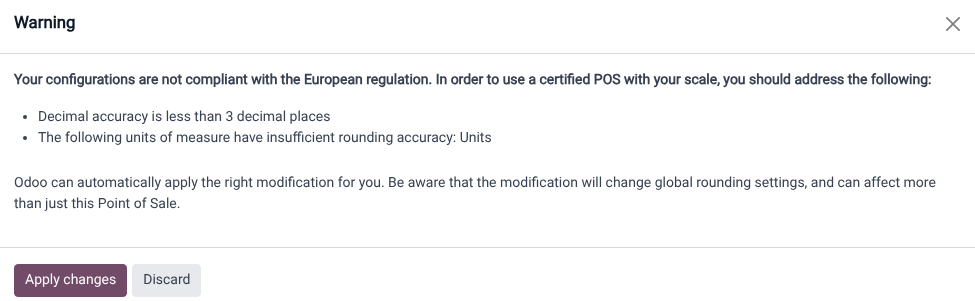
在商业交易中使用电子秤时,与电子秤集成的数据库必须进行配置,以符合欧洲的具体要求。这包括精度至少支持小数点后三位,以及对计量单位采用正确的四舍五入处理,例如使用 kg 而不是通用的 单位。
如果数据库不符合合规要求,系统会显示一个红色的 )图标作为警告。点击此图标可查看不符合规范的原因,然后选择 应用更改 以自动将必要的更改应用到设置中。一旦数据库满足所有监管要求, (电子秤) 图标将变为绿色。
附加说明
Both the customer and POS displays must have a minimum diagonal size of 6 inches. For optimal readability, larger screens are recommended.
在 POS 中显示电子秤
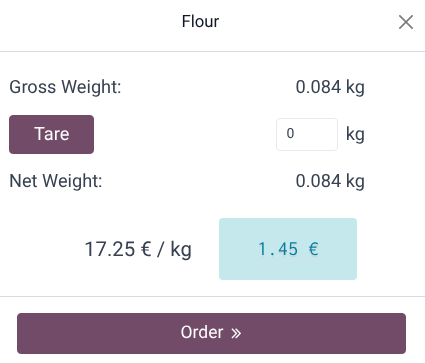
在订单界面选择需称重的商品,或扫描其条形码。
将商品放在电子秤上,等待弹窗显示重量。
重量确定后,系统将自动计算价格。
点击 下单 ,将商品加入购物车。
将上一件商品从秤上取下。
重要
称重新商品前,请确保秤已`回零`。若未回零,Ord下单er:icon:`fa-angle-double-right`按钮将保持不可点击状态,直至归零。