
自定义报告
Odoo 附带一个功能强大且易于使用的报告框架。该引擎允许您创建新的报告,如**税务报告**或**资产负债表**和**收入报表**,并可进行**特定分组**和**布局**。
重要
激活 开发者模式 访问会计报告创建界面。
To create a new report, open the Accounting app and navigate to . From here, you can either create a root report or a variant.
根报告
根报告可被视为通用的、中立的会计报告。它们是建立本地会计版本的模型。如果一个报告没有根报告,那么它本身就被视为根报告。
Example
比利时和美国的税务报告都将以相同的通用版本为基础,并根据其本地法规进行调整。
When creating a new root report, you need to create a menu item for it. To do so, open the report and, on that same report, click the (Actions) icon, then select Create Menu Item. Refresh the page; the report is now available under .
注解
需要创建新的根报告的情况很少见,例如当一个国家/地区的税务机构要求一种新的特定类型的报告时。
变体
变体是根报告的特定国家/地区版本,因此总是引用根报告。要创建变体,请在创建新报告时在 根报告 字段中选择通用(根)报告。
从会计应用程序的主菜单之一打开根报告时,其所有变体都会显示在视图右上角的变体选择器中。
Report lines
After having created a report (either root or variant), you need to fill it with report lines. You can either create a new one by clicking on Add a line, or modify an existing report line by clicking on it. All report lines require a Name, and can have an optional additional Code (of your choice) if you wish to use their value in formulas.
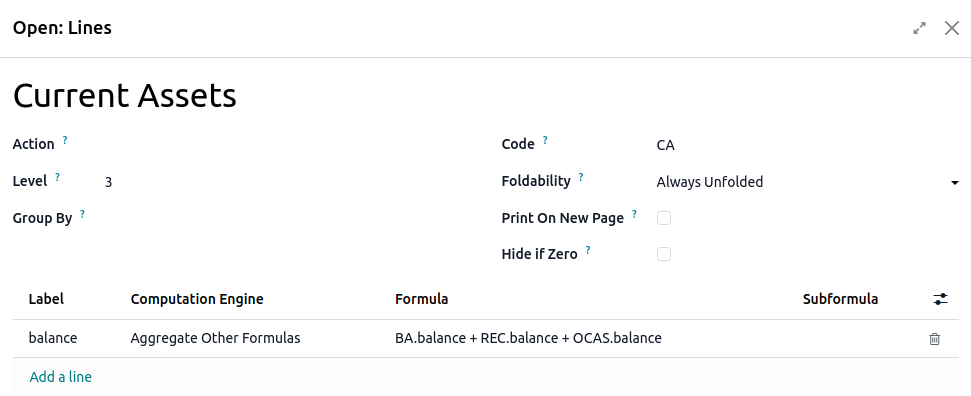
表达式
Each report line can contain one or multiple expressions. Expressions can be seen as sub-variables needed by a report line. To create an expression, click on Add a line within a report line.
When creating an expression, you must attribute a Label used to refer to that expression. Therefore, it has to be unique among the expressions of each line. Both a Computation Engine and a Formula must also be indicated. The engine defines how your formula(s) and subformula(s) are interpreted. It is possible to mix expressions using different computation engines under the same line if you need to.
注解
根据引擎的不同,可能还需要 子公式。
‘Odoo 域名’ 引擎
使用此引擎时,公式被解释为针对`account.move.line`对象的:ref:Odoo 域名<reference/orm/domains>。
子公式允许您定义如何使用与域匹配的移动行来计算表达式的值:
总额结果是匹配移动线路的所有余额之和。
sum_if_pos如果结果为正数,则为匹配移动行的所有余额之和。否则,结果为`0`。
sum_if_neg如果结果为负数,传回所有相符分录资料行的余额之和。否则,传回
0。count_rowsThe result is the number of sub-lines of this expression. If the report line has a group-by value, this will correspond to the number of distinct grouping keys in the matched move lines. Otherwise, it will be the number of matched move lines.
您也可以在子公式的开头加上 - 号,来**取反**结果的符号。

‘汇总其他公式’引擎
Use this engine when you need to perform arithmetic operations on the amounts obtained for other
expressions. Formulas here are composed of references to expressions separated by one of the four
basic arithmetic operators (addition +, subtraction -, division /, and multiplication *). To
refer to an expression, type in its report line’s code followed by a period . and the
expression’s label (ex. code.label).
**子公式**可以是以下其中之一:
if_above(CUR(amount))只有当算术表达式的值大于所提供的界限时,才会返回该值。否则,结果将是
0。if_below(CUR(amount))只有当算术表达式的值小于所提供的界限时,才会返回该值。否则,结果将为
0。if_between(CUR1(amount1), CUR2(amount2))只有当算术表达式的值严格位于所提供的界限之间时,才会返回该值。否则,将返回最接近的界限。
if_other_expr_above(LINE_CODE.EXPRESSION_LABEL, CUR(amount))只有当所提供的行代码和表达式标签所表示的表达式值大于所提供的界限时,才会返回算术表达式的值。否则,结果将为
0。if_other_expr_below(LINE_CODE.EXPRESSION_LABEL, CUR(amount))只有当所提供的行代码和表达式标签所表示的表达式值小于所提供的界限时,才会返回算术表达式的值。否则,结果将为
0。
CUR 是大写的货币代码,amount 是以该货币表示的绑定金额。
您还可以使用 cross_report 子公式来匹配另一份报告中的表达式。
‘账户代码前缀’引擎
该引擎用于匹配账户金额,使用这些账户代码的前缀作为算术表达式中的变量。
Example
21Example
21 + 10 - 5也可以忽略选定的子前缀。
Example
21 + 10\(101, 102) - 5\(57)101、102 和 57。您可以使用后缀 `C`(贷) 和 `D`(借) 对**贷记和借记**进行“子筛选”。在这种情况下,只有账户的前缀匹配,且该账户内的分录资料行的总余额为**贷记/借记**时,才会考虑该账户。
Example
账户 210001 余额为 -42,账户 210002 余额为 25。公式 21D 只与账户 210002 匹配,因此返回 25。210001 不匹配,因为其余额为*贷方*。
前缀排除可与`C`和`D`后缀混合使用。
Example
要匹配前缀中的字母 C 或 D,但不将其用作后缀,请使用空排除项 ()。
Example
21D\()除了使用代码前缀来包含账户外,还可以用**账户标记**来匹配它们。举例来说,如果你所在的国家没有标准化的会计科目表,那么相同的前缀在不同的公司可能会有不同的用途,这个方法就特别有用。
Example
tag(25)如果您引用的标记是在数据文件中定义的,则可以使用 xmlid 代替 id。
Example
tag(my_module.my_tag)您还可以将算术表达式与标记一起使用,也可以将其与前缀选择相结合。
Example
tag(my_module.my_tag) + tag(42) + 10后缀 C 和 D 的使用方法与标签相同。
Example
tag(my_module.my_tag)C前缀排除也适用于标签。
Example
tag(my_module.my_tag)\(10)10 开头的账户。‘外部价值’ 引擎
‘外部值’引擎用于参考**手动值**和**结转值**。这些值不是使用`account.move.line`存储的,而是使用`account.report.external.value`。这些对象中的每一个都直接指向它所影响的表达式,因此在这里几乎不需要进行选择。
**公式**可以是以下之一:
总额如果结果必须是该周期内所有外部值的总和。
most_recent如果结果必须是该周期内最新外部值的值。
此外,**子公式**有两种使用方法:
舍入=X将
X替换为数字,表示将金额四舍五入到小数点后 X 位。可编辑表示可以手动编辑该表达式,从而在报告中显示一个图标,允许用户执行该操作。
注解
手动值在报告中当前选择的 date_to 处创建。
这两个子公式可以混合使用,方法是用 ; 分隔。
Example
editable;rounding=2“自定义 Python 函数”引擎
该引擎是开发者根据具体情况引入自定义表达式计算的一种手段。公式是要调用的**python 函数**的名称,子公式是要从该函数返回的**字典**中获取的**键**。只有在制作自己的自定义模块时才使用它。
列
报表可显示的列数**无限**。每列会从**资料行**上宣告的**表达式**获取数值。该列的 expression_label 字段给出了显示其值的表达式的标签。如果资料行在某字段中没有**表达式**,该行在此列的位置便不会显示任何内容。如果需要多个列,必须使用不同的**表达式**标签。
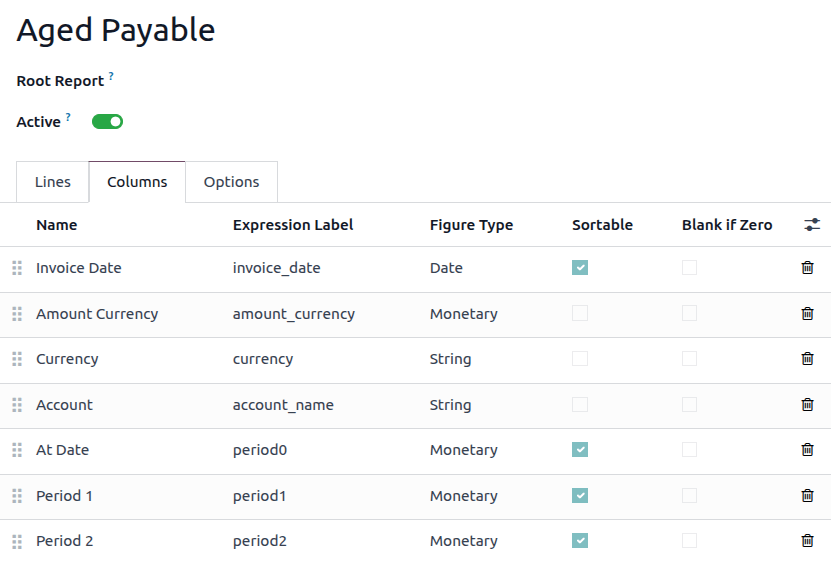
在会计报告的 选项 分页选用**期间比较**功能时,所有列都会在每个期间内,为每个期间重复显示。
行分组
通过在*日记账项目*模型上添加或使用现有字段(前提是这些字段是关联且非存储的),可以实现非标准分组。
注解
对行进行分组要求报告具有可编辑的显式报告行。例如,延迟报告不支持行分组,因为它们使用的是动态生成的行。
在日记账项目上创建新字段
要在*日记账项目*模型中创建一个非存储的关联字段,首先请前往 ,点击 (bug) 图标,然后点击 字段。点击 :guilabel:`新建`以创建新字段,并填写以下字段:
字段名称:字段的技术名称
字段标签:字段显示的标签
字段类型:此关联字段应指向的字段类型
已存储:请勿勾选此字段,因为只有非存储字段才能用于对行进行分组。
关联模型:如果字段类型是 一对多、多对多 或 多对一,请选择要按其分组的原始字段所属的模型。
关联字段定义:要按其分组的字段的技术路径
Example
例如,要按商业伙伴的销售团队进行分组,请将关联字段定义设置为`move_id.team_id`。
对行进行分组
To group lines, go to the Lines tab of the desired report, click on the line you want to group, and edit the Group by field. Enter the technical name (Field Name) of the field to use as the grouping key.
小技巧
要查找模型所有字段及其技术名称的列表,请前往 ,点击 (bug)`图标,然后点击 :guilabel:`字段。每个字段的技术名称列在 :guilabel:`字段名称`列中。
其他资料
Custom tax report setup
Report configuration
小技巧
All technical terms and functions of Odoo’s reports engine are explained in the previous sections of this page. We strongly recommend reading these sections before setting up a custom tax report.
To create a custom tax report, open the Accounting app, navigate to , then click New:
Enter a name for your report.
Select a Root Report.
Under the Availability field, select Country Matches, then select the Country matching your company.
Next, create a report line by clicking the Add a line. Once created, click that report line to configure it:
Click Add a line again to create an Expression and name it.
In the Definition tab, select a Computation Engine for that expression depending on the following scenarios:
In this scenario, your company uses tax grids:
Select Tax Tags as the computation engine. Odoo uses this field to link the report line to your taxes.
In the Formula field, type your short grid identifier (e.g.,
vat_sales_base). Odoo automatically generates the+and-variants of this tag for you to map inside .In the Subformula field, enter either
baseto report the untaxed amount, ortaxto report the actual tax amount collected/paid.
Repeat this process as necessary. Then, Save & Close.
Alternatively, you can:
Select Aggregate Other Formulas as the computation engine. Odoo uses this field to perform math on lines already present in the report rather than scanning raw transactions.
In the Formula field, use basic algebra referencing your line codes (e.g.,
LINE_10 - LINE_20).
Repeat this process as necessary. Then, Save & Close.
In this scenario, your company does not use tax grids. Instead, it tracks everything strictly via General Ledger accounts:
Select Prefix of Account Codes as the computation engine: Odoo uses this for lines that need to pull financial totals. Instead of looking for transaction tags, Odoo pulls live balances directly from your chart of accounts.
In the Formula field, type the starting digits of the accounts you want to track, (e.g.,
40will pull the combined total of all revenue accounts starting with400000,401000, etc.).
Repeat this process as necessary. Then, Save & Close.
Alternatively, you can:
Select Aggregate Other Formulas as the computation engine. Odoo uses this to calculate subtotals, net tax, or grand totals by adding or subtracting your other report lines.
In the Formula field, use basic algebra referencing your line codes (e.g.,
LINE_10 - LINE_20).
Repeat this process as necessary. Then, Save & Close.
In this scenario, your company requires advanced filtering, manual user overrides, or complex algorithmic logic that standard tags and account prefixes cannot handle:
Select Odoo Domain as the computation engine: Odoo uses this to bypass tax tags entirely and filter raw journal items (
account.move.line) using standard Odoo search syntax.In the Formula field, enter a valid domain starting with brackets to isolate tax-exempt transactions for specific partner categories.
Alternatively, you can:
Select External Value as the computation engine. Odoo uses this to log manual overrides or historical carryover values.
In the Formula field, type either
sum(to add all manual values together over multi-period reports) ormost_recent(to display only the latest value).In the Subformula field, type
editableto display an edit icon on the live report, allowing users to modify the value manually. Additionally, you can round numbers by typingrounding=x.
Alternatively, you can:
Select Custom Python Function as the computation engine. Odoo uses this as an execution engine to run specific calculations through backend coding when rules involve progressive brackets, loops, or multi-tier thresholds.
In the Formula field, enter the exact technical name of the Python method defined in your custom localization module.
Repeat this process as necessary. Then, Save & Close.
In the Options tab of an Expression, populate the Carry Over To field with a formula to always carry over balances or only carry them over when the amount is negative. Leave this field blank if you do not want to use this feature.
Example
if_below(EUR(0))Tax configuration
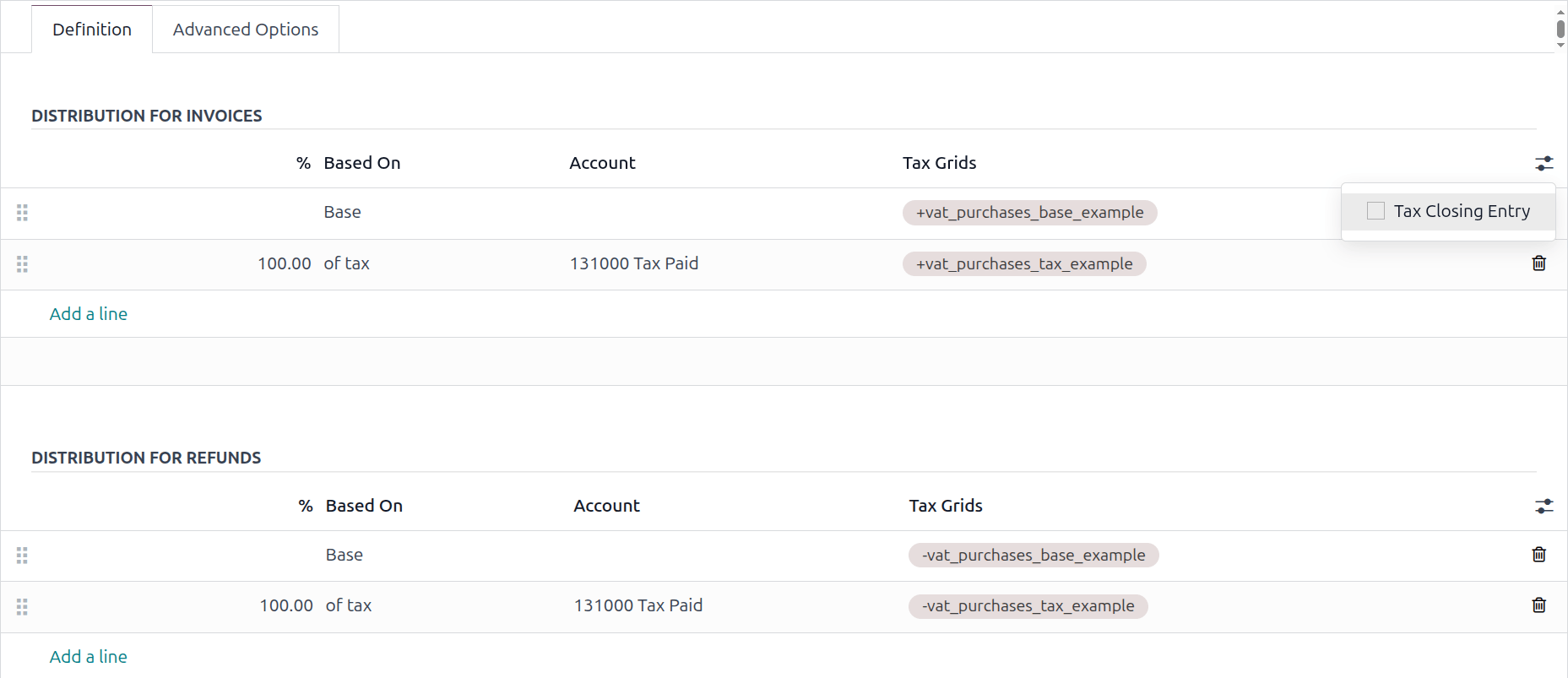
Next, go to and click New to create and configure new taxes for your custom tax report. Create your Sales and Purchases taxes, and populate the Tax Grids for all taxes using the matching tax grids you created earlier. Finally, make sure to specify both a tax payable and tax receivable account for each tax.
Example
Closing entry
To close taxes, a tax group must be specified on each tax used in your custom tax report. To do this, open the Accounting app, navigate to , open a tax that requires a tax group, click the Advanced Options tab, and select a group in the Tax Group field. Once assigned, click the (right arrow) icon and set both a Tax Payable Account and a Tax Receivable Account.
小技巧
When everything has been set up, make sure to test your report by creating invoices, bills, and credit notes using the taxes specific to that report. Finally, test the closing entry itself.
If you want to hide a specific account from displaying in the tax closing entry, go to , select the tax, and click the (settings adjust) icon. From there, check the Tax Closing Entry box to adjust its visibility.
其他资料