
出勤
Odoo 考勤 管理应用可作为员工打卡机使用。员工既可通过 :ref:`亭式模式专用设备 <attendances/kiosk-mode-entry>`完成上下班打卡,也可 :ref:`直接在系统后台 <attendances/check-in>`进行打卡操作。管理人员可随时查看在岗人员状态,生成工时统计报表,同时深入了解员工加班时长、早退等出勤情况。
访问权限
理解权限设置是使用**考勤**应用的关键。
所有数据库用户无需访问**考勤**应用即可直接打卡。此外,用户均可在**员工**应用的员工表单中查看自己的考勤记录。
能否访问**考勤**应用及其内置的各项功能,均由系统的访问权限配置决定。
查看用户权限路径:,选择具体用户后默认显示 访问权限 标签页。滚动至 人力资源 部分,其中 考勤 字段可选留空或设为 管理员。
选择 管理员 权限的用户可以完全访问整个 考勤 应用程序,包括查看所有考勤记录、进入*终端模式*、访问报表数据及修改设置。如果留空,则用户**无法**访问**考勤**应用程序的权限。
审批人
审批人指被指派审核员工考勤记录的用户(通常为经理,但非强制)。非管理员审批人**仅能**访问和修改被指派员工的记录,这是普通用户查看**考勤**应用数据的唯一例外情况。
To view who the attendance approver for an employee is, navigate to the and click on the specific employee. Click on the Work Information tab, scroll to the APPROVERS section, and check the Attendance field. The person selected is able to view that employee’s attendance records, both on the Attendances application dashboard as well as in the attendance reports, and make modifications to their records.
配置
**考勤**应用程序中需要的配置很少。确定员工的签到和签退方式、定义自助服务机的功能以及确定额外工时的计算方式都可以在配置菜单中进行设置。导航至 访问配置菜单。
注解
Any configuration item with a (building) icon is a company-specific configuration. Items without an (building) icon apply to all companies within the database.
模式
后台考勤打卡 :启用此功能后,用户可直接在 Odoo 系统后台完成上下班打卡;若未启用,用户则必须通过自助考勤机进行打卡操作。
Automatic Check-Out : Activate this feature to automatically check out employees according to their working schedule, after a buffer of time has passed.
Tolerance: This field appears only when the Automatic Check-Out feature is enabled. Enter the amount of time, in hours, that must elapse after an employee’s working hours have ended, before they are automatically checked out.
Example
启用 自动签退`选项,并将 :guilabel:`宽限时长 设为 2.00 小时。一名员工上午 9:00 打卡上班,下午 5:00 下班时忘记签退,系统将在当晚 7:00 自动为其完成签退。
Absence Management : Activate this feature to log any absences that are not associated with a time off request, such as vacation time or sick time, on the attendance report.
加班时间
本部分详细说明额外工时(有时称为*加班*)的计算方式,包括计入额外工时的情形以及不计入工时的情形。
公司侧加班宽限时长:输入时长(单位:分钟),员工加班时长**未**达到该阈值的部分,不计入加班统计。具体规则:员工下班打卡时,若超时时长低于设定分钟数,则该部分时长**不**计为加班;若超时时长高于设定分钟数,则全部超时时长均计入加班。
Example
一家公司将 公司侧加班宽限时长 设置为 15 分钟,全员标准工时为上午 9:00 至下午 5:00。
员工上午 9:00 打卡上班,下午 5:14 打卡下班,超时 14 分钟,**不**计入加班时长;若该员工下午 5:17 打卡下班,超时 17 分钟,则这 17 分钟全部计入加班时长。
员工侧考勤宽限时长:输入时长(单位:分钟),员工当日实际工时少于标准工时,但差值未超过该阈值的,**不会**对其考勤记录产生负面影响。具体规则:员工下班打卡时,若当日工时不足标准时长,且时长差值低于设定分钟数,则**不会**因此被处罚;若时长差值高于设定分钟数,则会因工时不足被处罚。
加班时长审批 :可选择以下任一单选按钮:勾选 自动审批,则所有加班时长自动通过审批;勾选 经理审批,则所有加班时长均需经管理人员审核批准后方可生效。
显示额外时间:激活此框可在员工使用自助服务机结账或用户在数据库中结账时显示其记录的额外工时。
注解
已批准的额外工时可从 已批准的休假申请中扣除。
概述
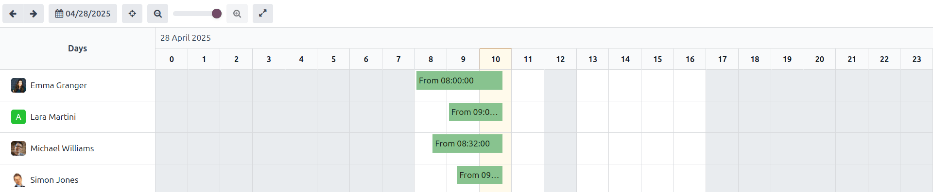
When entering the Attendances application, the Overview dashboard is presented, containing all the user’s check in and check out information. If the user has the required access rights or is an approver for specific employees, those employees’ check-in and check-out information also appears on the Overview dashboard.
考勤 仪表板支持在 (甘特图) 和 (列表) 视图间切换,并可选择分析时段。当前时段会以黄色高亮显示实时考勤记录,点击 (聚焦今日) 按钮可立即跳转至当天数据。
筛选器和分组
有时,考勤员和经理需要查看特定记录,如所有自动签出记录,以确定哪些员工长期忘记签出,或按部门查看,以确定哪个团队加班最多。
在这些情况下,请使用搜索栏选择 筛选器 或 分组方式,或将两者结合起来以显示所需的信息。
其他资料
高价值筛选器
筛选 |
常见使用场景 |
|---|---|
工作中 |
在夜间关闭办公楼前确认仍在岗员工,执行人员清点。 |
错误 |
查看所有错误记录以便在薪资处理前修正。 |
自动签退 |
审计经常忘记签退的员工。 |
日期 |
将结果限定在特定薪资周期或审计时段。 |
在职/已存档员工 |
审计历史数据时在当前员工与离职员工间切换。 |
智能分组
分组 |
适用场景 |
|---|---|
员工 |
在1对1会议中查看个人考勤记录。 |
部门 |
对比人员配置与工时,识别工作超负荷或不足的团队。 |
管理员 |
确定需要跟进考勤问题的员工对接人。 |
方法 |
发现考勤方式趋势以排查硬件问题。 |
日期(日/周/月) |
识别缺勤高峰或季节性规律。 |
考勤记录详情
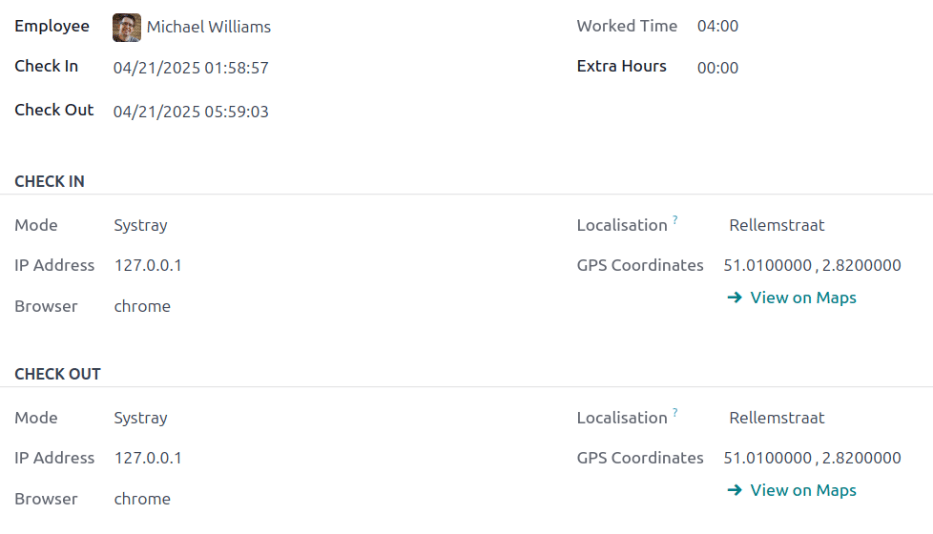
Odoo 会针对每一次上下班打卡,同步记录打卡时间与打卡地点,具体记录字段会根据打卡方式的不同有所差异。这些详尽的考勤日志可用于核实员工在任意工作日的在岗地点,对于实行混合办公制度的企业而言尤为实用 —— 这类企业可能需要通过考勤审计,确保相关制度得到合规执行。
详细的考勤记录包含以下信息:
主要详情
员工:员工姓名。
签到: 员工签到的日期和时间。
签退:员工签退的日期和时间。**只有**员工签退时才会显示。
Worked Time: The total amount of time the employee logged for the day, across multiple check-ins and outs, in an hour and minute format (HH:MM).
Worked Extra Hours: Unpaid overtime hours worked beyond the expected working schedule (shows only when present for the employee).
Extra Hours: Approved overtime (the Worked Time minus the approved Worked Extra Hours.
签到/签退详情
以下信息同时显示在 签到 和 签退 部分。
Mode: Attendance submission method. Can be Systray, Kiosk, or Manual entry.
IP Address: The device’s IP address used to log in or out.
Browser: The web browser the employee used to log in or out.
定位信息:与打卡设备 IP 地址对应的城市及国家/地区。
GPS Coordinates: The coordinates when the user logged in or out. To view the coordinates on a map, click the View on Maps button beneath the GPS coordinates. This opens a map in a new browser tab, with the location pointed out.
考勤异常
包含错误的条目会以红色显示在概览仪表板上。在 (甘特) 视图中,条目显示为红色背景;在 (列表) 视图中,条目文本显示为红色。
员工打卡后 24 小时内未签退,或单次打卡时段超过 16 小时,将触发异常。
To fix the error, the attendance entry must be modified or deleted. Click on the entry to reveal a pop-up containing the details for that particular entry. To modify the Check In and/or Check Out information, click on the Check In or Check Out field, and a calendar selector appears. Click on the desired date, then use the time selector beneath the calendar to select the specific time for the entry. When the information is correct, click Apply.
弹出窗口中的所有信息都正确后,点击 保存并关闭。当条目不再有错误时,条目将显示为灰色而不是红色。
如需删除记录,请点击弹窗中的红色 删除 按钮(而非修改记录)。