新手入门
新员工入职时,必须有一套可遵循的入职程序。这可以确保向员工提供信息、设备和培训,并将业务的其他必要步骤分配给正确的人员。
规范的入职管理流程,可确保新员工获取岗位履职所需的全部信息与工具,助力其平稳过渡到新的工作岗位。
查看入职管理计划
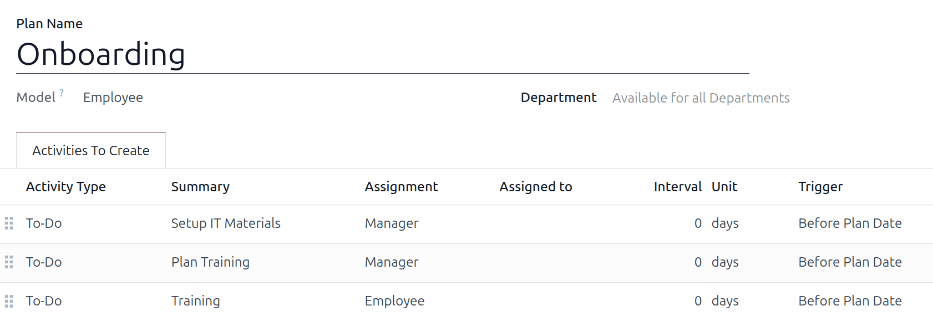
Before onboarding can begin, it is recommended to check the default onboarding plan that comes preconfigured with the Employees app. To view the current default plan, navigate to . Click Onboarding to view the detailed onboarding plan form.
入职计划表单包含以下信息:
Plan Name: the specific name for the onboarding plan.
Model: specifies where this plan can be used. In this case, in the Employees app.
Department: if left blank (the default setting) this plan is available for all departments. Limit the use of the plan to a specific department by selecting the department using the drop-down menu.
Activities To Create: this tab lists all the onboarding steps. Each row displays:
Activity Type: the specific activity for the step. The default options are Email, Call, Meeting, To-Do, or Upload Document. If the Sign app is installed, a Request Signature option is available.
Summary: a one line description of the step.
Assignment: chooses who completes the activity, relative to the new hire:
Ask at launch: choose the user in the Assigned To field when launching the onboarding plan.
Default user: choose a user who always handles this activity. Defined in the Assigned to field.
Manager: assigns the employee’s manager as defined on the employee record.
Coach: assigns the employee’s coach as defined on the employee record.
Employee: the new hire completes the activity.
Fleet Manager: assigns the designated Fleet app manager. This option is only available if the Fleet app is installed.
Assigned to: this field remains blank, unless Default user is selected for the Assignment field. If Default user is selected, this field is populated with the selected user.
Document to sign: the corresponding document requiring a signature.
Interval: the time when the activity is active.
Unit: the set time interval, either days, weeks, or months.
Trigger: how scheduling is determined for the activity. Options are either Before Plan Date or After Plan Date.
Example
企业需在新员工入职前一天,完成笔记本电脑的配置与登记工作并交付给员工。该任务的固定负责人为 IT 部门经理 Abby Jones。
要使用这些参数配置此活动,应将 活动类型 设置为 待办,摘要为 配置笔记本电脑。分配 字段设置为 默认用户,分配给 字段设置为 Abby Jones。时间间隔 为 1, 单位`设置为 :guilabel:`天。 触发条件 为 计划日期前。

入职计划步骤
系统预设的 入职 计划包含三项默认步骤。所有步骤均为 待办事项 类型,且排期为入职管理计划的启动当日(即 计划日期前0天)。
Setup IT Materials: the manager must gather and configure all IT materials.
Plan Training: the manager must plan the training for the new employee.
Training: the new employee must complete the training planned by the manager.
编辑入职管理计划
一份统一的入职管理计划,仅适用于该流程可覆盖全公司所有部门的场景。
注解
If the onboarding plan is universal, add to or modify the default onboarding plan. If department-specific onboarding plans are needed, create a new onboarding plan.
To modify the default plan, first navigate to , then click on Onboarding.
To modify a step, click on it. In the Open: Activities pop-up window, make any desired modifications to the step, then click Save.
要添加新步骤,请点击 要创建的活动`选项卡中列出的活动底部的 :guilabel:`添加一行,弹出空白的 创建活动`窗口。在弹出窗口中输入所有信息,如果没有其他步骤要添加,请点击 :guilabel:`保存并关闭;如果需要更多步骤,请点击 保存并新建。
新建入职计划
部分企业存在仅适用于特定部门、无法在全公司推行的入职流程,针对这类情况,就需要为对应部门创建专属的入职计划。
To create a new onboarding plan, navigate to the desired plan and configure all the desired steps.
Example
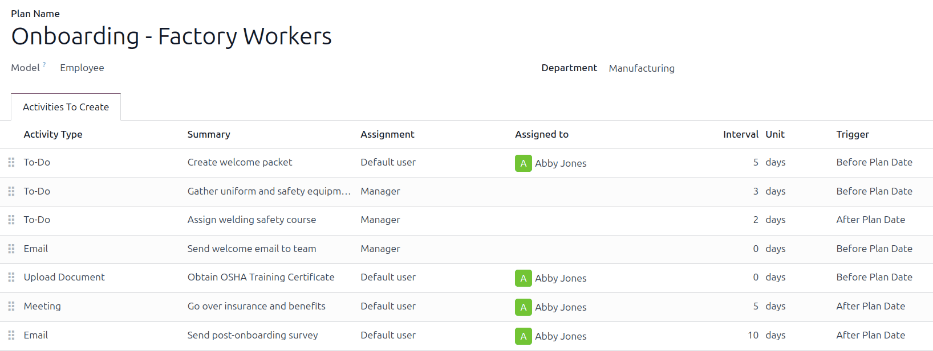
一家主营户外金属家具生产与销售的企业,可能会设有大型生产工厂与独立的销售办公室两个场所。针对这类企业,可配置两套独立的入职管理计划 —— 一套适用于工厂作业人员,另一套适用于办公室职员。
面向工厂作业人员的入职管理计划,需将适用部门设置为 :guilabel:`制造`部门,并包含一系列与工厂岗位强相关的专属任务。例如:为新员工发放工服与劳保用品、安排安全培训课程、向对应班组群发新员工入职通知邮件、讲解员工福利政策等。
启动入职管理计划
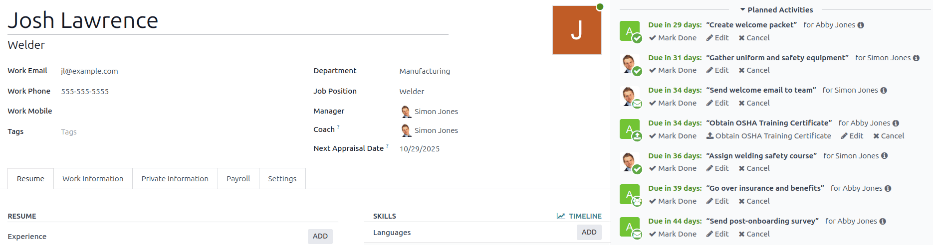
After an employee has been hired and their employee profile is created, navigate to the desired employee’s profile by clicking on their Kanban card on the Employees app dashboard, then click the Launch Plan button on their employee profile, and a blank Launch Plan pop-up window loads.
In the Plan field, choose the desired onboarding plan. Then, using the calendar selector, set a date in the Plan Date field. This is typically the employee’s first day, but any date can be selected.
The right side of the Launch Plan pop-up window displays all the steps in the selected plan, grouped by what was selected in the Assignment fields on the plan form.
Once the Plan and Plan Date fields are configured, click the Schedule button, and Odoo schedules everything in the plan, according to their respective due dates.
All scheduled activities appear in the both chatter of the employee profile, and in the chatter of the user’s with assignments relating to the plan.
注解
If any activity assignments were configured to Ask at launch, an Assigned to field appears on the Launch Plan pop-up window. Using the drop-down menu, select the user responsible for all the unassigned activities.