过账开支
Once an expense report is approved, the next step is to post the expenses to the proper accounting journal.
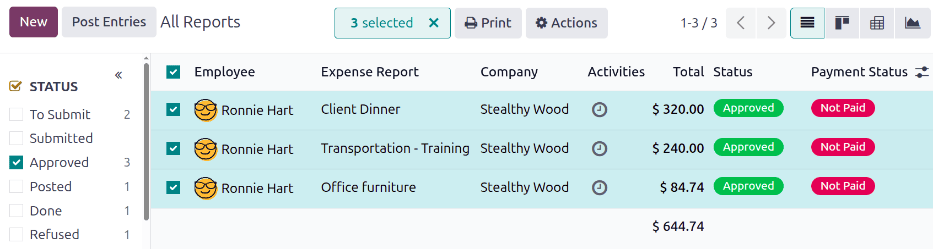
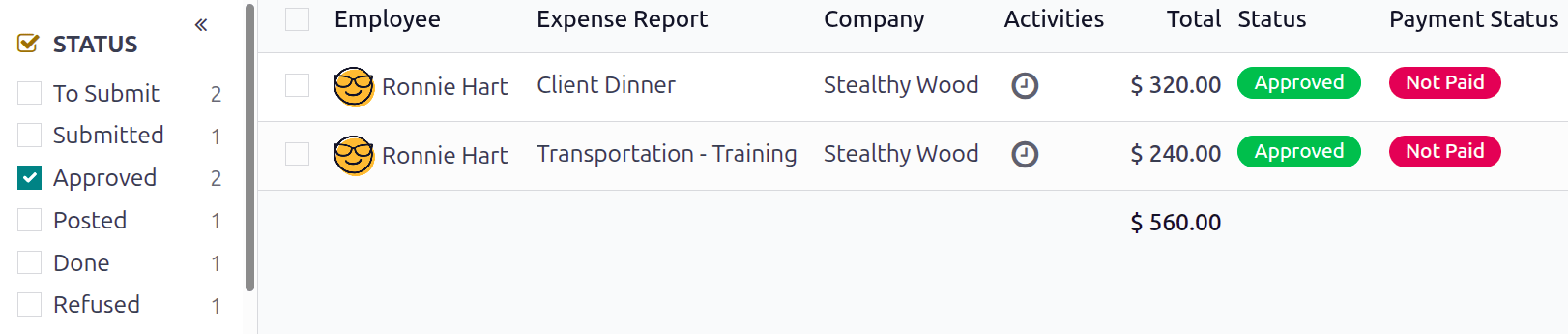
Only expense reports with an Approved status can post the expenses to a journal. To view all expense reports, navigate to . Next, to view only approved expense reports that need to be posted, adjust the filters on the left side so only the Approved checkbox is ticked.
注解
The default All Reports dashboard displays all expense reports that are not Refused.
发布个人报告
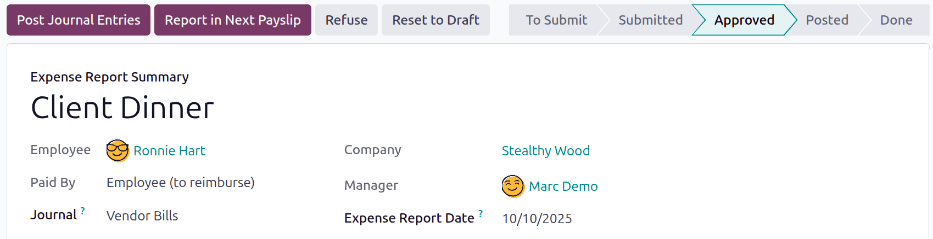
要发布单个报告,请导航到 ,然后点击 状态 为:guilabel:已批准`的单个报告,以查看报告表单。在此视图中,有几个选项::guilabel:`发布日记账条目、在下一张工资单中报告、拒绝 或:guilabel:重置为草稿。
Click Post Journal Entries to post the report. The accounting journal the expenses are posted to is listed in the Journal field of the expense report.
将支出记入会计分录后,屏幕顶部会出现 日记账分录 智能按钮。点击 日记账分录 智能按钮,日记账分录的详细信息就会出现,状态为 已发布。
发布多份报告
要同时发布多份开支报告,请导航至 ,查看开支报告列表。然后,勾选要批准的每份报告旁边的复选框,选择要批准的报告。
注解
只有状态为 已批准 的费用报告才能将费用记入会计分录。如果选择的费用报告 不能 过账,如未批准的报告,或报告已过账到日记账,则 过账条目 按钮 不 可见。
小技巧
要**只**选择已批准的费用报告,请调整左侧的筛选器,使只有 已批准 复选框被打勾。然后,勾选:guilabel:员工 列标题旁边的复选框,一次选中列表中的 所有 已批准 报告。
然后,点击 过账分录 按钮。