补货分包
In resupply subcontracting, a company supplies the components of its product to a subcontractor, who manufactures the product, then delivers the finished product to the contracting company’s warehouse.
This article covers how to configure a subcontracted product and walk through the resupply subcontracting process.
配置
In order to use the resupply subcontractor workflow, users must follow the configuration process below:
Specify the subcontractor as a vendor on the subcontracted product.
Create a subcontracting-type BoM for the product and add the necessary components.
For each component, open its product form and set its Resupply Subcontractor on Order route.
Specifying the subcontractor as a vendor on the product form allows the contracting company to properly purchase the product from the subcontractor through a purchase order (PO). The bill of materials (BoM) allows the product to be manufactured externally by the subcontractor. The Resupply Subcontractor on Order route is applied to each component in order for them to be properly sent from the contractor to the subcontractor.
Specify product vendor
要为补货转包配置产品的供应商,请转到,并选择一个产品,或创建一个新产品。
On the product form, click the Purchase tab and add the product’s subcontractor as a vendor by clicking Add a line. Select the subcontractor in the Vendor drop-down menu.
Then, enter the price of the product in the Price field.
Finally, set a lead time for the product in the Delivery Lead Time field to specify the number of days for the subcontractor to receive components, produce the product, and deliver the finished good.
注解
Since contractors are not responsible for manufacturing the final product, there is no need to configure manufacturing lead times on a BoM. Instead, provide only a single Delivery Lead Time on the vendor pricelist, factoring in the duration for the subcontractor to receive the components from the contractor, manufacture the product, and deliver the finished good back to the contractor.
Configure BoM
指定供应商后,为产品配置转包类型BoM。首先,点击产品页面上的物料清单智能按钮。然后,选择所需的BoM或创建一个新的。
小技巧
或者,导航至 ,然后选择分包产品的 BoM 。
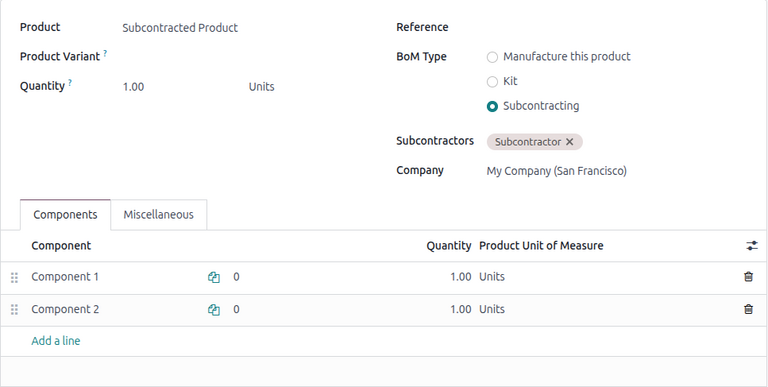
在物料清单类型字段中,选择转包选项。然后,在下面的转包商字段中添加一个或多个转包商。
Finally, add all necessary components in the Components tab. To add a new component, click Add a line. Then, select the component in the Component drop-down menu, and specify the required quantity in the Quantity field.
配置组件
In resupply subcontracting, each component must be individually configured with the Resupply Subcontractor on Order route. This allows the components to be transferred from the contractor to the subcontractor when a PO is made for the subcontracted product.
To configure a component’s route, select the component’s name in the Components tab, and click the (Internal link) arrow. Alternatively, navigate to , and select the component.
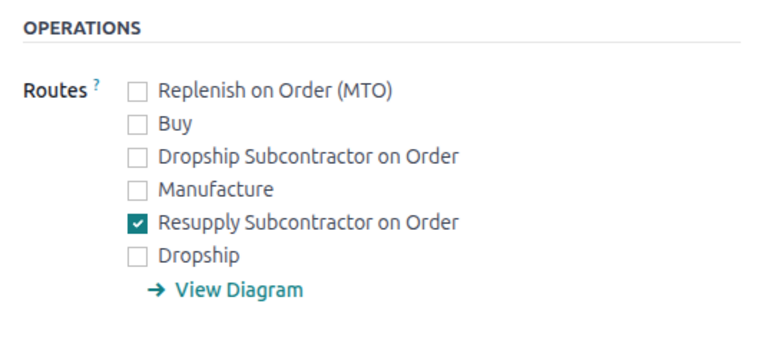
On the component product form, click on the Inventory tab. Then, in the Routes section, select the Resupply Subcontractor on Order route.
重要
对必须发送给分包商的每个部件重复上述过程。
工作流
The resupply subcontracting workflow can be summarized in the following steps:
Validate the resupply order to send the components.
Validate the receipt to receive the final product.
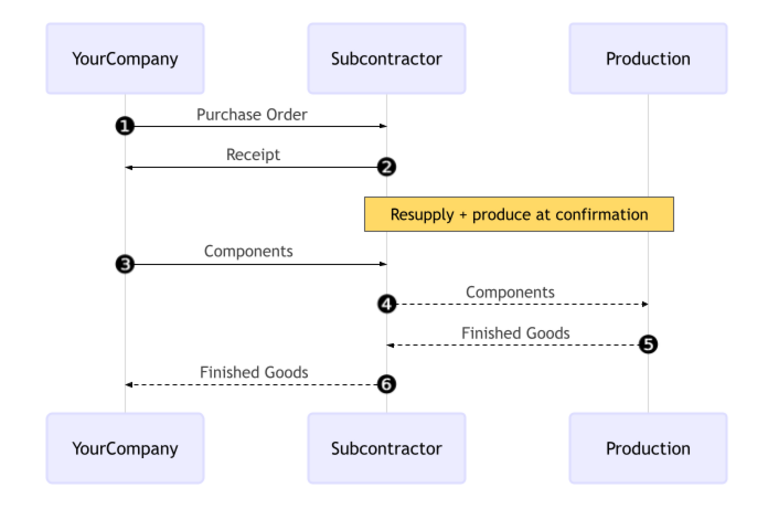
The workflow begins by creating a PO to purchase the product from the subcontractor (1).
The contractor (YourCompany) then confirms the PO, which creates both a resupply order to transfer the components and a receipt to receive the final product (2) from the subcontractor.
Next, the contractor validates the transfer of components to the subcontractor (3). The subcontractor begins producing the product.
Once the product has been produced and received, the contractor validates the receipt (6) to trigger inventory moves from the subcontractor to the company’s stock (4, 5).
Create and confirm subcontractor PO
要为转包产品创建PO,请转到并点击新建。
开始填写PO,从供应商下拉菜单中选择一个外包商。在产品选项卡中,点击添加产品创建新的产品行。在产品字段中选择外包产品,并在数量字段中输入数量。
After adding the product, the Expected Arrival field is updated with the finished product’s expected delivery date, as configured earlier with the vendor Delivery Lead Time.
Finally, click Confirm Order to confirm the PO. A receipt and a resupply order are automatically created, accessible via the Receipt and Resupply smart buttons at the top of the form.
验证补货订单
Click the Resupply smart button at the top of the PO to open the resupply order, and click Validate to confirm that the components have been sent to the subcontractor.
Alternatively, navigate to the app, click the (#) To Process button on the Resupply Subcontractor card, and select the relevant resupply order. Then, click Validate to confirm that the components have been sent to the subcontractor.
处理收据
After the resupply order is confirmed, the subcontractor manufactures the product and delivers the finished good back to the contracting company.
To receive the finished product from the subcontractor, click the Receive Products button on the PO, or click the Receipt smart button at the top of the page. Then, click Validate to enter the incoming shipment into inventory.
注解
如果启用了多步库存流程,则必须验证其他转移才能将入库产品录入库存。
追踪库存移动
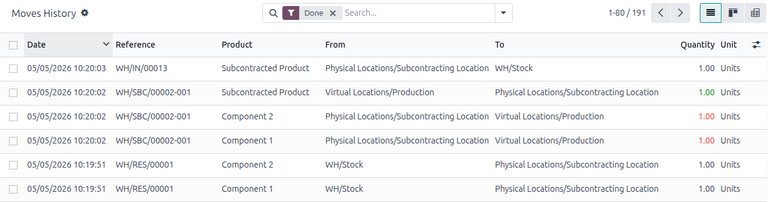
After validating the receipt, Odoo automatically generates inventory moves to track the movement of subcontracted products between locations. To view these inventory moves, navigate to .
In resupply subcontracting, Odoo first transfers any product components to a dedicated Subcontracting Location. A virtual location called Production then consumes the components and produces the finished good. Once produced, the good then moves back to the Subcontracting Location before finally entering the contractor’s stock when the receipt is validated.