
电子开票(EDI)
EDI,即电子数据交换,是指企业间以标准格式传输采购订单和发票等商业文件。按照 EDI 标准发送文件可确保接收方系统能够正确解读信息。根据企业所在国家/地区的不同,有多种 EDI 文件格式可供选择。
EDI 功能帮助企业实现行政管理流程自动化。部分国家政府出于财税管控或行政程序支持的目的,也可能要求使用 EDI。电子化发送客户发票、贷记单或供应商账单等文件就是 EDI 的一种应用场景。
Odoo 支持多个国家/地区的电子发票功能。具体详情请参考 各国/地区页面说明。
其他资料
配置
默认情况下,:ref:`发送窗口 <accounting/e-invoicing/generation>`中可用的格式取决于客户所在国家/地区。
若要为某个客户指定特定的电子发票格式,请前往 ,进入客户表单,切换到 会计`选项卡,在 :guilabel:`客户发票`部分选择合适的 :guilabel:`格式。
电子发票生成
在已确认的发票上,点击 发送。在 打印和发送`窗口中,启用相关的电子发票格式选项(例如 :guilabel:`通过 Peppol),然后点击 发送 以生成并附加相应的电子发票 XML 文件。
Peppol
Peppol 网络确保了企业与政府机构之间的单据和信息交换。它主要用于电子发票,其接入点(连接至 Peppol 网络的连接器)使企业能够发送客户发票和贷记单等电子单据,并接收供应商账单和退款等单据。
在此场景下,Odoo 同时充当接入点和 SMP(服务元数据发布者),实现电子发票交易,无需再通过电子邮件或邮寄方式发送发票或账单。
注解
Peppol 注册在 Odoo 社区版中**免费**提供。
支持发送单据的格式包括 BIS Billing 3.0、XRechnung CIUS 和 NLCIUS。
- 以下**国家/地区**可以在 Odoo 中进行**Peppol 注册**:安道尔、阿尔巴尼亚、奥地利、波斯尼亚和黑塞哥维那、比利时、保加利亚、瑞士、塞浦路斯、捷克共和国、德国、丹麦、爱沙尼亚、西班牙、芬兰、法国、英国、希腊、克罗地亚、匈牙利、爱尔兰、冰岛、意大利、列支敦士登、立陶宛、卢森堡、拉脱维亚、摩纳哥、黑山、北马其顿、马耳他、荷兰、挪威、波兰、葡萄牙、罗马尼亚、塞尔维亚、瑞典、斯洛文尼亚、斯洛伐克、圣马力诺、土耳其、圣座(梵蒂冈城)。
登记
要在 Peppol 上注册,请前往 部分。然后,按照以下步骤操作:
Click Activate Electronic Invoicing in the PEPPOL Electronic Invoicing section and fill in the following fields:
使用 :guilabel:`(向下箭头)`图标,确保在下拉列表中选择了相关的国家特定 Peppol 端点标识符,然后输入您的 Peppol 端点(通常是公司注册号或增值税号)。
电子邮件
电话:需包含国家/地区代码(例如,比利时为 +32)
Click Activate Peppol. The registration is then pending activation.
其他资料
Peppol 端点 - OpenPeppol eDEC 代码列表 (以 HTML 页面形式打开“参与者标识符方案”)
Select another purchase journal in the Incoming Invoices Journal field if necessary, or a folder name in the Document Workspace field if multiple purchase journals are used, and Save.
The registration should be automatically activated within a day.
All invoices and vendor bills can then be sent directly using Peppol.
注解
To update the Primary contact email, modify it and click Update.
如果您正在使用之前服务提供商的接入点,请务必先从其处注销,然后再向您的新接入点注册( Hermes BOSA 除外)。若使用 Hermes(BOSA),则无需任何操作,迁移将自动处理。
小技巧
要手动触发用于检查 Peppol 注册状态的计划操作,请启用 开发者模式,打开设置应用,前往 ,搜索 Peppol:更新参与者状态。打开该计划动作,然后点击 手动执行。
To try Peppol without sending real data, enable demo mode by selecting Odoo Demo ID as the Peppol endpoint identifier. To switch back to production mode, change the account_peppol.edi.mode system parameter to
prodmode before activating Peppol in production.For advanced testing on Peppol’s dedicated test network, use the test mode by setting the account_peppol.edi.mode system parameter to
test. This option is intended for experienced users only.
联系验证
在使用 Peppol 向联系人发送发票前,请确保该联系人已注册为 Peppol 参与者。具体步骤如下:
前往 并进入客户表单。
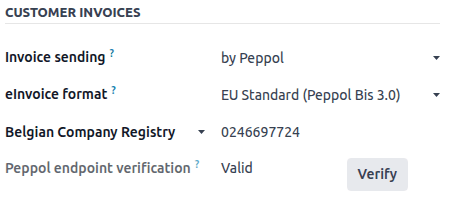
在 :guilabel:`会计标签页`的 :guilabel:`客户发票`区域,检查以下信息:
电子发票格式:选择相关格式。
使用 (向下箭头) 图标,确保在下拉列表中选择了相关的国家特定 Peppol 端点标识符,然后输入客户的端点标识符(通常为公司注册号或增值税号)。
要验证联系人,请启用 开发者模式 <developer-mode>`并点击 :guilabel:`验证。如果该联系人在 Peppol 网络中被找到,其 Peppol 端点验证`状态将标记为 :guilabel:`有效。
重要
尽管 Odoo 会根据联系人的可用信息预填端点编号,但仍建议与联系人核实这些详细信息。
发送发票
Posted invoices to be sent via Peppol are marked as Ready to send in the invoice’s Peppol status field.
注解
All invoices that are ready to be sent via Peppol can be viewed in the following ways:
In the Invoices list view, use the (adjust settings) button to add the Peppol status column or apply the Peppol Ready filter in the search bar.
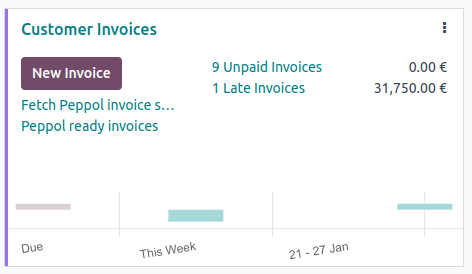
In the Accounting dashboard, click Peppol ready invoices on the relevant sales journal.
To send the invoice to the customer via Peppol, click Send on the confirmed invoice form. In the Print & Send window, enable the by Peppol option and click Send.
小技巧
:ref:` 多张发票 <accounting/invoice/sending-multiple-invoice>` 也可以通过 Peppol 分批发送。
在客户表单的 会计 标签的 客户发票 部分,为客户设置首选 发送发票 方法为 Peppol。
一旦发票成功传送到联系人的接入点,状态就会更新为 已完成。
小技巧
To manually trigger the scheduled action used to check the invoices’ status, go to the Accounting dashboard and click Fetch Peppol invoice status on the corresponding sales journal.
收到供应商账单
New documents received via Peppol are checked multiple times a day. Received documents are automatically imported into the purchase journal set in the PEPPOL Electronic Invoicing section, and corresponding vendor bills are created as drafts and appear in the vendor bills list view.
小技巧
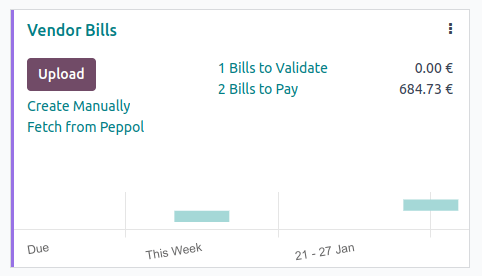
To manually trigger the scheduled action to retrieve incoming Peppol documents, go to the Accounting dashboard and click Fetch from Peppol on the main Peppol purchase journal.
Multiple purchase journals
注解
请确保 文件 - 从 Peppol 导入 (documents_account_peppol) 模块已 安装。
When using multiple purchase journals, new vendor bills can be received via the Documents app. To do so, follow these steps:
在“文件管理”应用中,创建一个特定的 文件夹 <documents/folders>`或为 :guilabel:`会计 文档启用 文件集中管理。
在 文档工作区 字段中,选择相关的文件夹。
使用 文档标签 字段为传入的 Peppol 文档添加标签,以便于识别。
点击:guilabel:
保存。
然后,打开文件管理应用,导航至相应的文件夹,选择相关的供应商账单,并点击 创建供应商账单。随后,相应的供应商账单即被创建。
添加额外字段
重要
添加字段需要使用 Studio 应用。
Odoo 默认支持最常见的 Peppol 字段,但在通过 Peppol 发送电子发票时,可以通过使用 Studio 向发票中 添加额外字段 来包含其他 Peppol 数据。
下表显示:
可以添加的额外 Peppol 字段。以下字段:
資料類型,在使用工作室新增欄位時*必須*符合欄位類型
使用工作室新增欄位時*必須*輸入的確切欄位標籤
重要
Odoo 使用新欄位的標籤自動產生欄位的技術名稱。為確保欄位的技術名稱格式正確,使用下方工作室欄位標籤欄中的確切文字至關重要。
Peppol 技術名稱(XML) |
資料類型 |
工作室欄位標籤 |
|
|---|---|---|---|
主發票 |
TaxPointDate |
日期 |
|
ContractDocumentReference.ID |
文本 |
|
|
DespatchDocumentReference.ID |
文本 |
|
|
AccountingCost |
文本 |
|
|
ProjectReference.ID |
文本 |
|
|
InvoicePeriodStartDate |
日期 |
|
|
InvoicePeriodEndDate |
日期 |
|
|
OrderReference.ID |
文本 |
|
|
发票行 |
OrderLineReference/LineID |
文本 |
|
item.buyersItemIdentification |
文本 |
|
要在发票表单视图或发票行列表视图中添加新字段,请按照以下步骤操作:
启用开发者模式。
导航至(或,适用于发票用户)。
打开现有发票,或点击新建。
点击(切换工作室)图标打开工作室。
如果要在发票行列表视图中添加字段,请在发票行标签页中点击,然后点击编辑列表视图。
从左侧面板拖放文本或日期字段到右侧视图中的所需位置。
输入标签,完全按照上表中工作室字段标签列中显示的内容输入,然后在字段标签外点击,即可看到技术名称自动更新。
点击关闭以保存所有更改。
注解
Odoo 中的技术名称应与 x_studio_peppol_tax_point_date 的格式匹配。如果出错且技术名称不正确,请编辑技术名称。
小技巧
按照上述说明创建新字段后,可以将其添加到其他视图,例如发票列表视图。
从 Odoo 注销 Peppol
Only one Peppol receiver registration can be active for each Peppol endpoint identifier at a time. To stop using Odoo as the Peppol access point, e.g., to switch to another provider or reconfigure the registration for a new database, you must first deregister from Peppol. To do so, go to , scroll down to the PEPPOL Electronic Invoicing section, click Remove from Peppol, and confirm.
一旦移除,Peppol 注册将从数据库中删除,并且无法再通过 Odoo 中的 Peppol 发送或接收文档。
特定国家/地区的电子发票详情
有关具体国家的详细信息,请参阅以下页面: