Skills evolution
In Odoo’s Appraisals app, it is possible to view employees’ skills as they progress over time in the Skills Evolution report, also known as the Appraisal Skills Report.
Managers can use this to see who is achieving their various skill goals set on their appraisals, who is meeting their skill deadlines, who has the highest performance in terms of skill development, and more.
The Skills Evolution report also provides the ability to search for employees with specific skills at certain levels, which can be helpful for scenarios where specific skills are required.
Skills evolution report
To access this Skills Evolution report, navigate to .
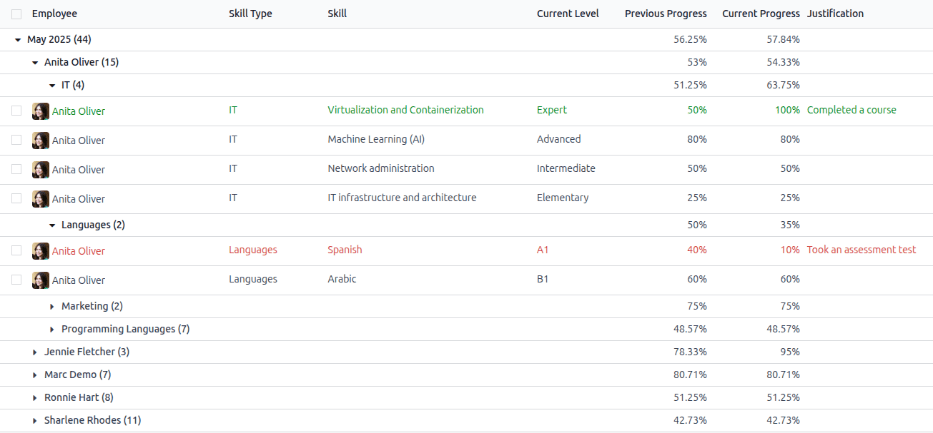
Doing so reveals the Appraisal Skills Report page. All skills are grouped first by the month the skill was initially achieved, then by employee, and lastly by skill type.
Important
The Appraisal Skills Report only displays skills for employees with at least one completed appraisal. Skills for employees whose appraisals have a status of Draft or Ongoing are not included.
When an employee completes their first appraisal, all their skills appear on the report. Once subsequent appraisals are marked as Done, any skill changes from the previous appraisal appear on the report.
Any skill level changes from ongoing appraisals that have not been finalized are not included in this report.
To view the specific details for an employee’s skill, expand the Employee, then the Skill Type. This displays a list of all the employee’s skills within that skill type. Each skill displays the following information:
Employee: The name of the employee.
Skill Type: The category the skill falls under.
Skill: The specific, individual skill.
Current Level: The current level the employee has achieved for the skill.
Previous Progress: The previous percentage of competency achieved for the skill.
Current Progress: The current percentage of competency achieved for the skill.
Justification: Any notes entered on the skill, explaining the progress.
The color of the skill text indicates any changes from the previous appraisal. Skill levels that have increased since the last appraisal appear in green, skill levels that have not changed appear in black, and skills that have regressed appear in red.
This report can be modified to find specific information by adjusting the filters and groupings set in the search bar at the top.
Use case: Identify employees with specific skills
Since the Appraisal Skills Report organizes all skills by month, then employee, it can be difficult to find employees with a specific skill at a certain level. To find these employees, a custom filter must be used.
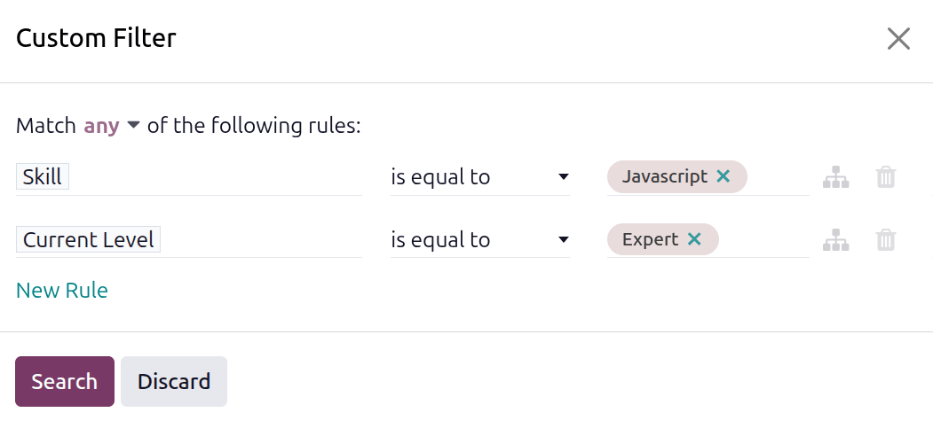
In this example, the report is modified to show employees with an expert level of Javascript knowledge. To view only those employees, first remove all active filters in the search bar.
Next, click the (Toggle Search Panel) icon in the search bar, then click Custom Filter… beneath the Filters column to load a Custom Filter pop-up window.
At the top of the pop-up window, first modify the Match any of the following rules sentence. Click the word any to change it to all.
Next, using the drop-down menu in the first field, select Skill. Then, keep the second field as-is (is equal to), and select Javascript for the third field.
Next, click New Rule, and another line appears. In this second line, select Current Level for the first drop-down field, leave the second field as-is (is equal to), then select Expert for the third drop-down field.
Finally, click the Search button.
Now, only employees that have an Expert level for the skill Javascript appear. In this example, only Marc Demo meets these criteria.

Use case: Assess highest improvement
Another way to modify the Appraisal Skills Report is to identify the employee who has the highest amount of improved skills over a specific period of time.
To view this information, first remove the default filter in the search bar. Next, click the (Toggle Search Panel) icon in the search bar, then click Improvement beneath the Filters column. Enabling this filter only presents skills that have improved.
It is possible to view the skills that have improved over a period of time, such as a specific quarter, or month. With the search bar drop-down menu still expanded, click Custom Filter… at the bottom of the Filters column, and a Custom Filter pop-up window appears.
Select Create Date for the first drop-down field, then select after for the second drop-down field. Once after is selected, the current date populates the last field. Modify the date so it is one day before the desired date range.
Next, click New Rule, and a second line appears with identical information. In this second rule, click on the middle drop-down menu, and select before. Modify the last field so the date is one day after the desired time period.
Once all the fields are properly formatted, click Search.
The custom filter presents all skills that have been improved, organized by employee, in a default list view.
Example
To determine the employee with the most amount of improved skills for the second quarter, remove the default filter in the search bar of the Appraisal Skills Report. Next, activate the Improvement filter, then click Custom Filter… at the bottom of the Filters column.
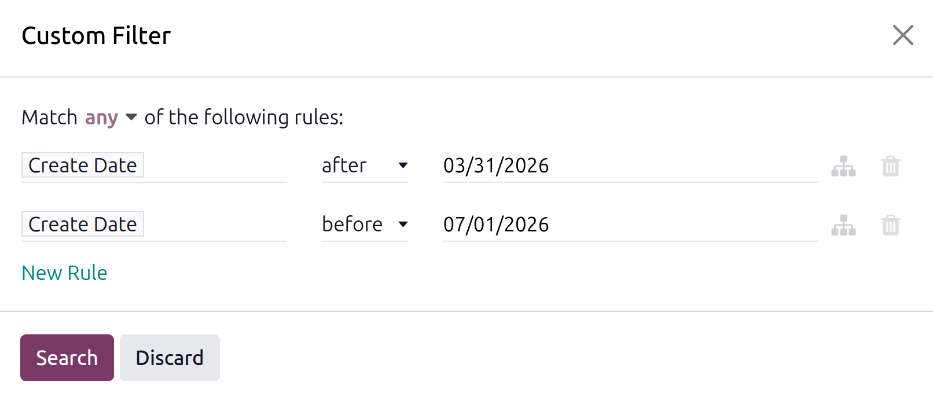
In the resulting Custom Filter pop-up window, select Create Date for the first drop-down field, then select after for the second drop-down field. Using the calendar selector, set the date to 03/31/2026. Click New Rule, and select before in the middle field. Using the calendar selector, set the last field to 07/01/2026, then click Search.
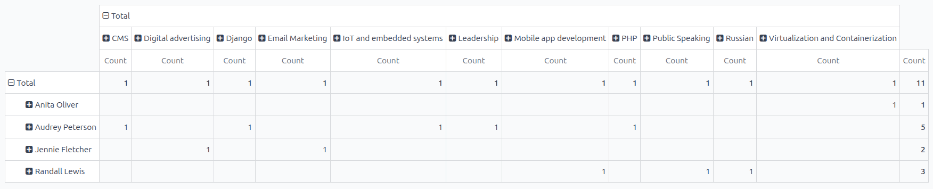
To view the number of employees and skills in further detail, click the (Pivot) icon in the top-right corner. This presents a pivot table with the employees populating the rows, and the only visible column represents the total number of improved skills.
To expand the columns to view which skill types had the most overall improvement, click Total above the Count column, then click Custom Group , then click Skill from the resulting drop-down menu. This expands all the improved skills, organized by individual skill.
Example
In this example, Audrey Peterson improved the most in the third quarter, with five improved skills.